
Why this screen
Here you see where your money is right now: how much is in checking, how much is in your wallet, how much you owe on the credit card. The envelopes on the “Budget” screen answer “for what”, and accounts answer “where”.
Add your accounts
Every place money is kept: cards at every bank, your wallet, savings.
Reconcile with the bank
Once a week or a month, make sure the app and the bank show the same thing.
Clear out the old
Closed a card? Hide it, and the history stays.
What's where on the screen
Tap any screenshot to open it full screen.
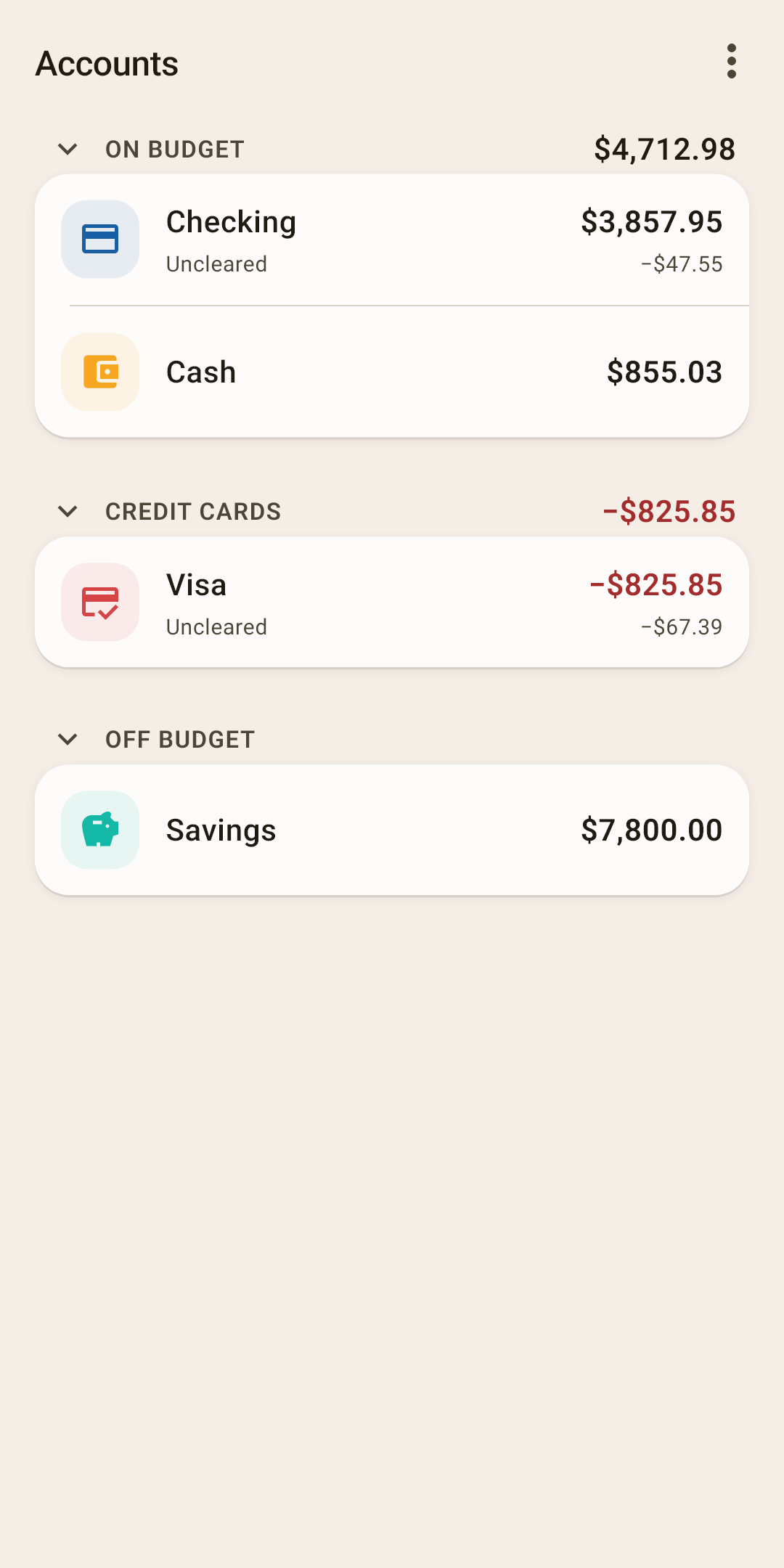
Section — a shelf of accounts of one kind. Tap the name to collapse the section.
How it works
There are four sections, and which one an account lands in depends on its type. “On budget” is money you divide among envelopes: checking, cash. “Credit cards” — credit cards. “Off budget” — what you're saving or just want to keep in view: savings, a deposit. “Debts” — loans. An empty section isn't shown. More in the section “On budget or off budget”.
Section total — how much is in all the accounts of the section.
How it works
“On budget” in the screenshot is $4,712.98: that's checking and cash together, exactly the money you divide among envelopes on the “Budget” screen. “Credit cards” has a red total — that's debt.
Account — one row is one wallet, card or deposit. The icon and color come from the account type.
How it works
Tap the row to open the account screen: all its transactions, like in “Activity”, but only for this account. Press and hold to open the account menu (below). Swipe left or right — “Edit” or “Delete”.
Balance — how much is in the account right now according to your records.
How it works
This is the sum of all the account's transactions with the starting balance. If it doesn't match the bank, a transaction was forgotten or recorded twice. How to find it — “Balance reconciliation”.
“Uncleared” — the total of transactions the bank hasn't processed yet.
How it works
Checking in the screenshot shows −$47.55: you've already recorded the purchase at “Whole Foods”, but it's not at the bank yet. When it shows up in your statement, check it off with the circle in the feed (in “Activity” — callout 9), and the line disappears. While there are such transactions, the balance in the app and the balance in your bank's app legitimately differ — by exactly that amount. The mark is optional. If you don't use it, all the account's transactions end up here — that's not an error, the line just doesn't tell you anything then.
“Credit cards” — a separate section for credit cards. The red total is how much you owe the bank. For each credit card the app creates a special category on the “Budget” screen by itself — leave it alone.
How it works
Credit card spending shrinks envelopes just like debit card spending. But the app sets aside the money for paying it off by itself — into the “Card payments” group on the “Budget” screen. A credit card payment is a transfer from your debit card to the credit card.
The special category. When you create an account of the “Credit card” type, the app creates a category with the same name as the card in the “Card payments” group on the “Budget” screen. Under its name it says “Card debt …”. The app sets money aside in it for the payment: spent $35 on the credit card — $35 moved here from the purchase's envelope.
Leave this category alone — and the app won't let you touch it anyway: it can't be renamed, deleted or moved to another group, and you can't add your own category to the “Card payments” group. The app uses it to count the debt of this particular card. Rename the card on the “Accounts” screen — the category renames itself. Change the card to another type — the category disappears, and its money goes back to “unassigned”.
One thing with it is still yours: the debt the card had before you started tracking. The app doesn't set money aside for it — to pay it off, you put money into this category like any envelope, a little at a time or all at once.
“Off budget” — accounts whose money isn't divided among envelopes: savings, a deposit. How they differ — below.
The “⋮” menu — add an account and set up how the list looks. Explained below.
On budget or off budget
The main question about each account: do you divide its money among envelopes? The answer decides where the account appears on this screen and whether its money reaches the “Budget” screen.
On budget
Checking, cash, a credit card — what you spend from every day. Every dollar here should be in some envelope. A paycheck lands in checking — it goes to “unassigned”.
Off budget
Savings, a deposit, investments, a loan — what you want to see but don't spend every day. This money has no envelopes. Moved money from savings to checking? It shows up in “unassigned”, and you can hand it out.
A new account lands in its section by itself, by type: “Cash” and “Bank account” go to “On budget”, “Credit card” to “Credit cards”, “Loan” to “Debts”, “Tracking” to “Off budget”. Loans and “Tracking” accounts have no envelopes.
The “⋮” menu
A new account and how to show the list.
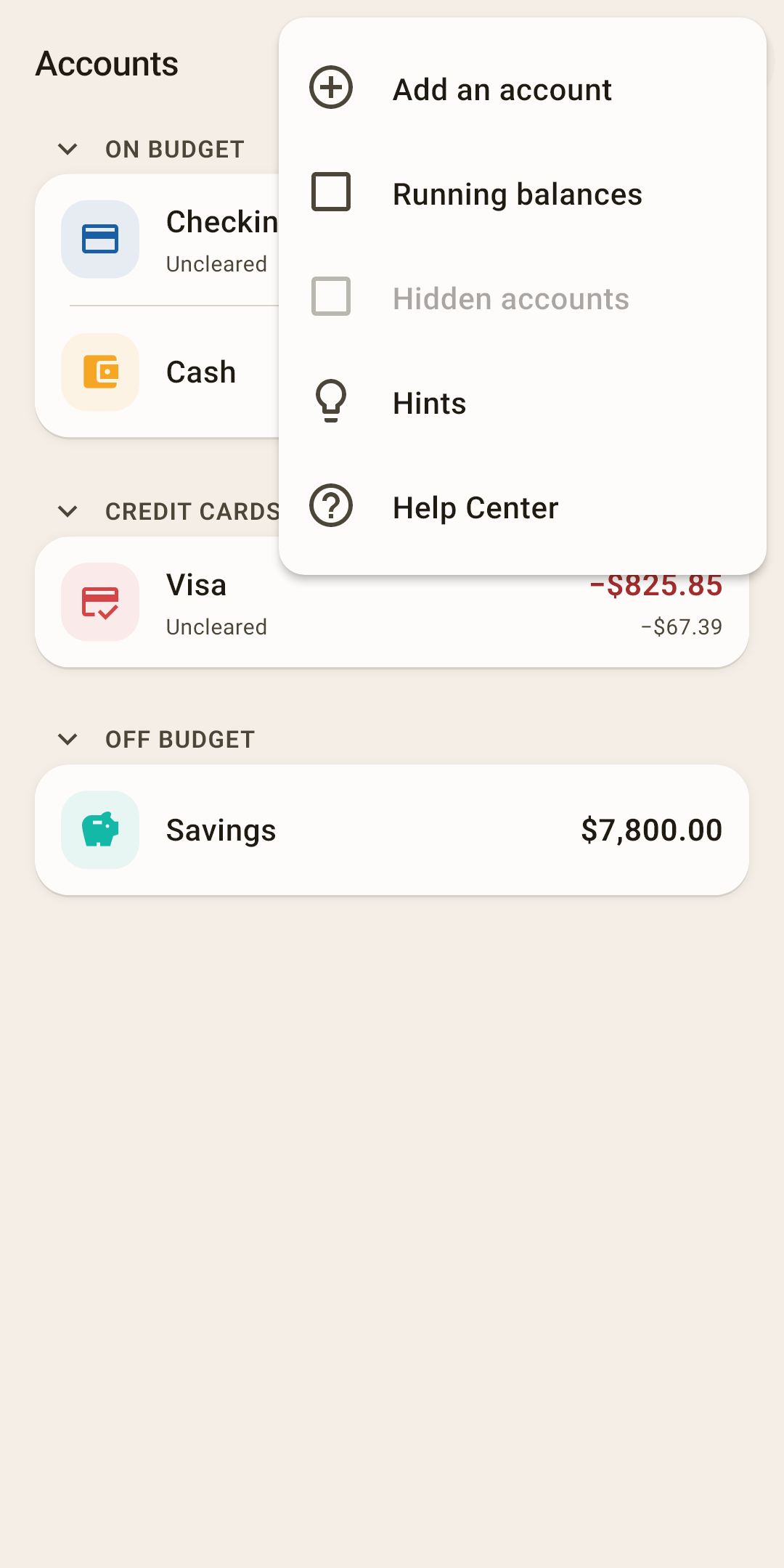
Add an account
A new card, wallet or deposit.
How it works
Tap “Add an account”.
Choose a type: “Cash”, “Bank account”, “Credit card”, “Loan” or “Tracking”. The type decides the section and the icon.
Enter a name — whatever you call this account: “Chase card”, “Wallet”.
Enter how much is in the account today — the amount from your bank's app or your wallet.
Save. The amount becomes the starting balance. For cash and a bank account it goes straight to “unassigned” on the “Budget” screen — hand it out to the envelopes.
Running balances
Show the balance after each transaction — for all accounts at once.
How it works
The same as “Running balance” in a single account's menu, only for all of them. Right after installing: off.
Hidden accounts
Show hidden accounts at the bottom of the list.
How it works
The number in parentheses is how many there are. While there are no hidden accounts, the item is gray, as in the screenshot. Each hidden account in the list has a “Restore” button.
Hints
All of this screen's hints in one place.
Help Center
This article on the website: it opens in your browser, in the app's language.
What you can do with a row
An account row has no buttons. Tap it, press and hold, or swipe it sideways.
| Do this | What happens |
|---|---|
| Tap | The account screen: all its transactions, with the balance and “Uncleared” at the top. |
| Press and hold | The account menu — explained below. |
| Swipe left | “Edit” — the account edit sheet: name, type, look. |
| Swipe right | “Delete”. If the account had transactions, the app offers “Hide”. |
The account menu — press and hold
An account row has no “⋮” of its own, so as not to take space from the name. The menu opens with a long press right where your finger is. The same items are in the “⋮” on the account's own screen.
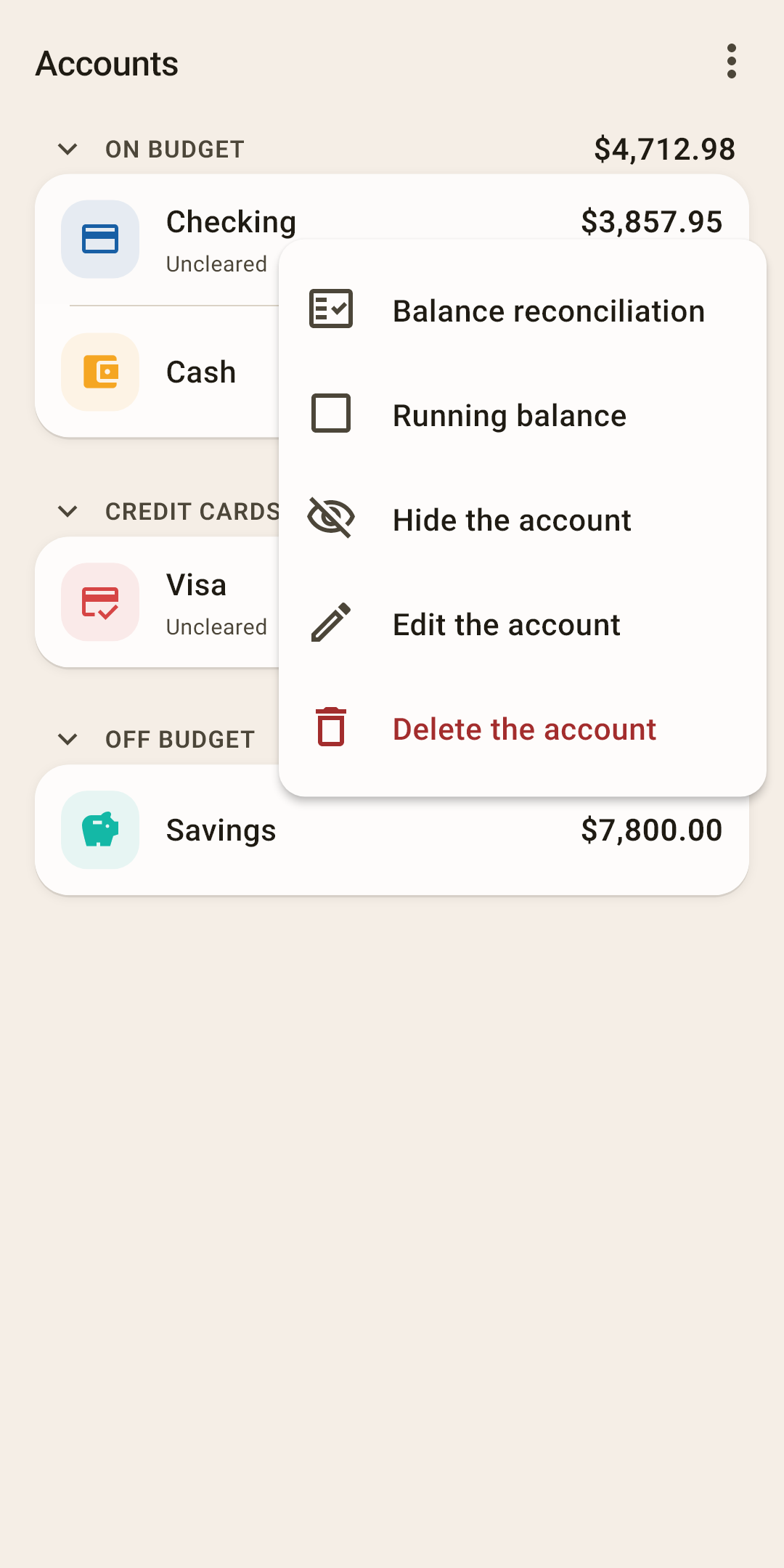
Balance reconciliation
Check that the app and the bank show the same thing.
How it works
Open your bank's app and see how much is in the account.
In “Accounts”, press and hold this account and choose “Balance reconciliation”.
The dialog says “In the app: …”. Below, in the “Actual balance at the bank” field, enter the amount from the bank and tap “Reconcile”.
It matches — the app says “Balance reconciled ✓”. All of the account's transactions up to today get a lock, and “Reconciled” with the date appears under the account.
It doesn't match — the “The balance does not match” dialog shows the difference. First look for a forgotten or extra transaction. Can't find one? Tap “Create an adjustment”: the app adds a transaction for that difference, and you fill in the category, payee and note yourself.
Transactions with a lock count as checked: editing one asks for confirmation, so that what's reconciled doesn't drift by accident.
Running balance
Show under each of this account's transactions how much the account held after it.
How it works
Handy for finding where the balance parted ways with the bank statement: go through the transactions and compare balances row by row. It turns on only for this account; for all at once — “Running balances” in the “⋮” menu.
Hide the account
Remove an account you no longer use from the list.
How it works
Closed a card? You can't delete it — it has history. A hidden account disappears from the list, but its transactions stay in the history and reports. To bring it back: “⋮” → “Hidden accounts” — they appear at the bottom of the list with a “Restore” button.
Edit the account
Change the account's name, type, icon and color, and for an account in another currency — the currency.
How it works
The same sheet opens when you swipe the row left. If the account has a starting balance, the sheet has a “Starting balance” row with the date and amount — tap it to open that transaction itself, and fix it like any other.
Delete the account
Only an account without a single transaction.
How it works
If the account already has transactions, the app says how many and offers to hide the account instead of deleting it — reports and balances need the history. The same with a swipe to the right.