
Why goals
An envelope answers “how much is in here”. A goal answers “how much should be in here”. The app compares the two and tells you how much more to put in.
“Food takes $400 a month” — a “Monthly” goal on “Groceries”. Every month the app reminds you to set aside that $400.
“Vacation in March, I need $2,000” — a “By date” goal. The app splits the amount across the months by itself: this much in November, this much in December.
“The rainy day fund should hold $4,000” — a “Balance” goal. Spend part of it, and the app asks you to put it back.
The goal itself doesn't move money: it only counts. You put the money into the envelope — on the “Budget” screen or with a single “Assign to goals” button (more on it below). Each category has one goal.
What's where on the screen
The “Goals” screen opens from “Budget”: “⋮” → “Goals”. It has all the categories with their goals for the selected month. The screenshot shows November in the demo budget: five goals of five kinds.

Month — the “‹ ›” arrows flip through months, tapping the name opens a month picker. Goals are calculated for this month. Leave the current one, and a “Today” button appears at the bottom.
The “⋮” menu — which categories to show, progress bars, hints — below.
Summary — “Total” is how many goals there are. “Monthly cost” is how much all goals need this month. “Short” is how much hasn't been put in yet.
Group — the same groups as on “Budget”. Under the name — how many goals the group has and how short they are, or “all covered”. Tapping collapses the group.
A category without a goal — “no goal”. Tap the row or the “⊕” — “New goal” opens.
A category with a goal — the whole goal in three lines. Tapping opens it for editing.
How it works
The first line: the category name, the kind of goal (“per month”, “by date”, “balance”, “% income”, “list”) and the goal amount. The second: a bar — how much is done — and the state: a green flag and “Reached”, or a flag and “… to go” — how much to add. The third: the goal's condition in words and the percent done.
In the screenshot, “Groceries” is reached: $400 is already set aside in the envelope in November. And “Travel & vacation” is $100 short this month — that's how much is needed per month to reach $2,000 by March.
The “⋮” menu
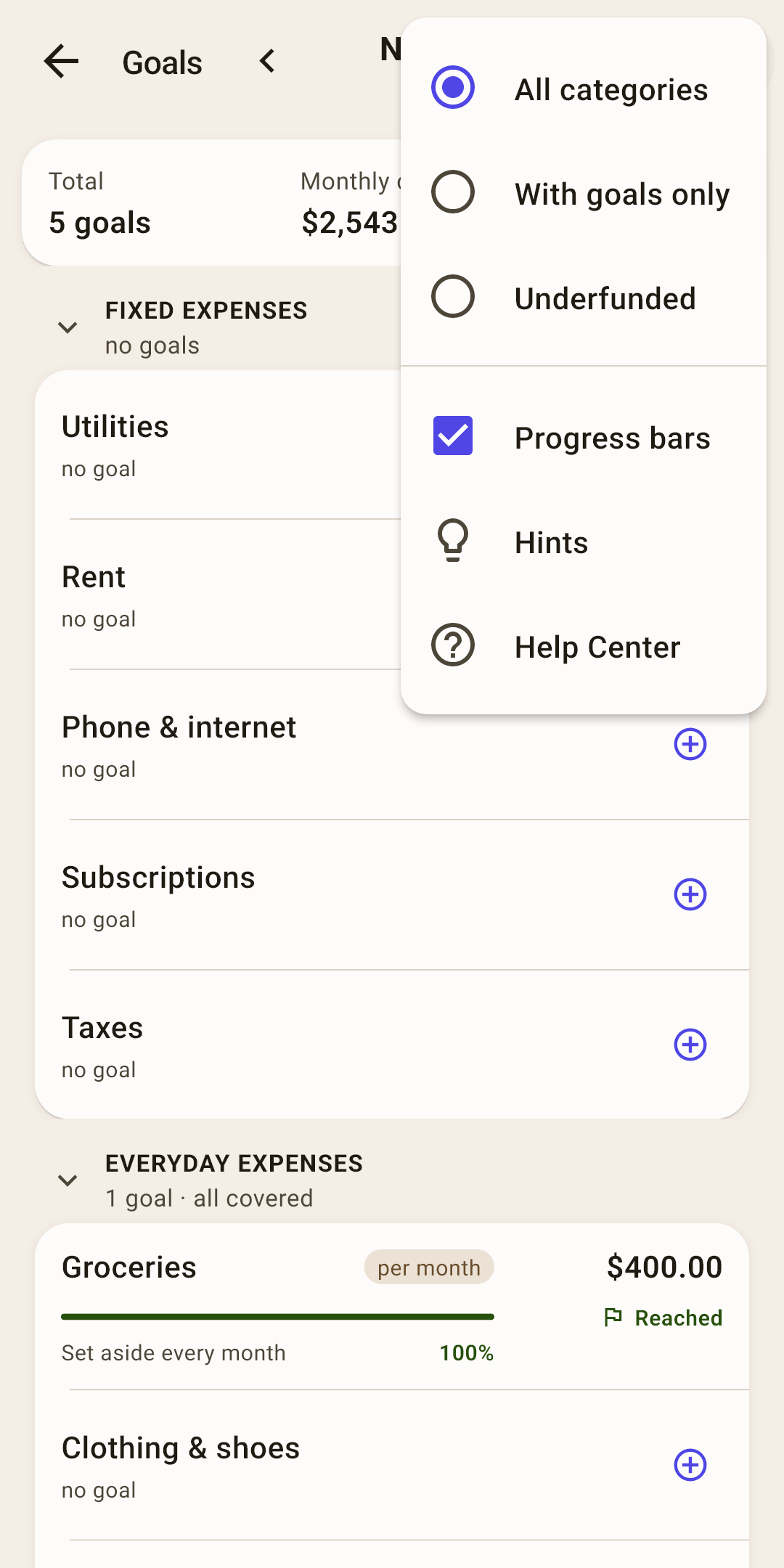
Which categories to show
“All categories”, “With goals only” or “Underfunded” — those whose goal is short of something this month. The choice is remembered; if not everything is shown, a dot lights up on the “⋮”.
Progress bars
whether to show bars and percentages. Without them the row is shorter, while the goal and amount stay in place.
Hints
this screen's hints as a list.
Help Center
This article on the website: it opens in your browser, in the app's language.
How to set a goal
You set a goal here, on “Goals”, or on the category's own screen — with the “Add a goal” button in the “Goal” card. It's the same sheet.
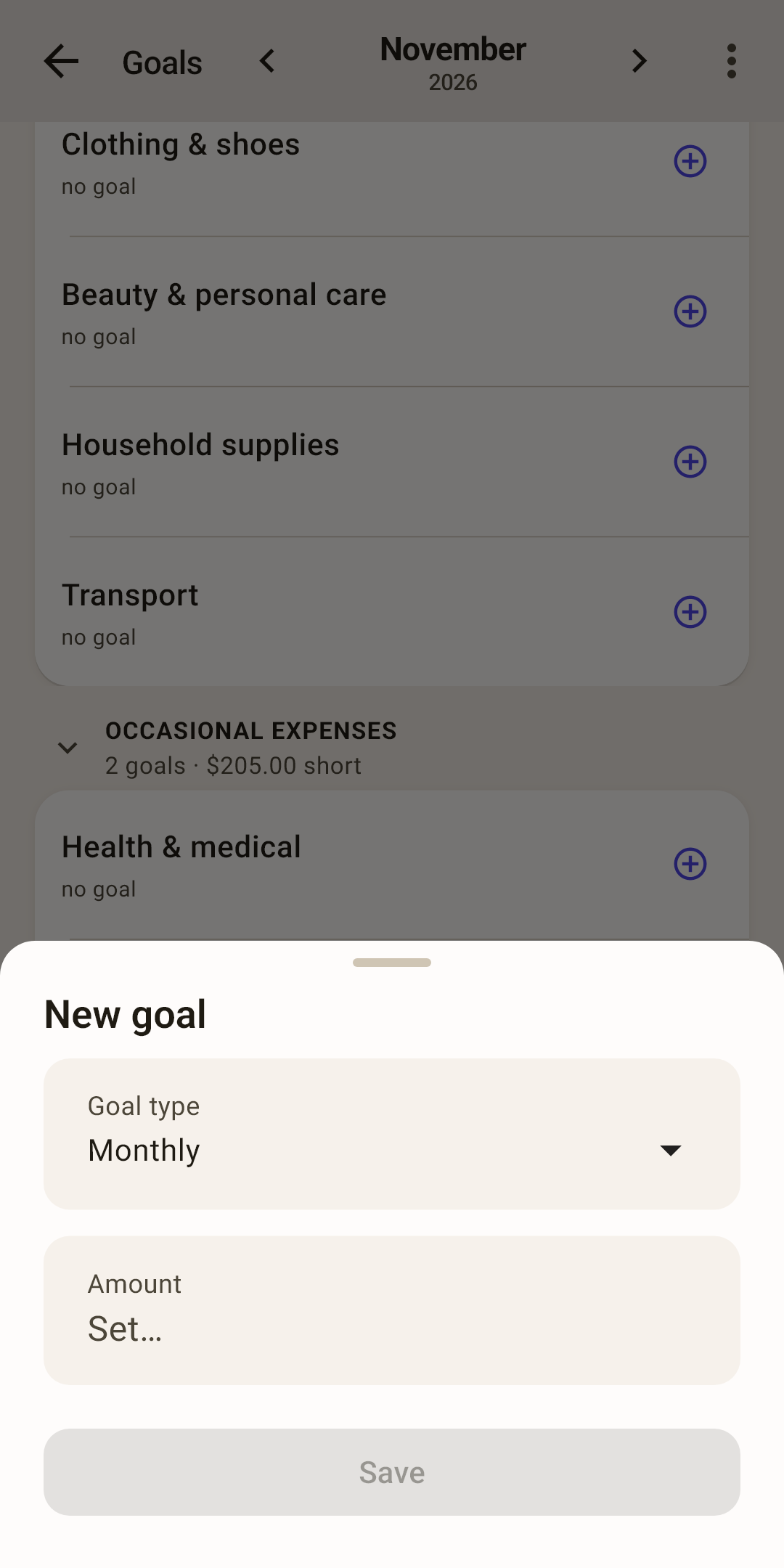
Tap a category without a goal. “New goal” opens.
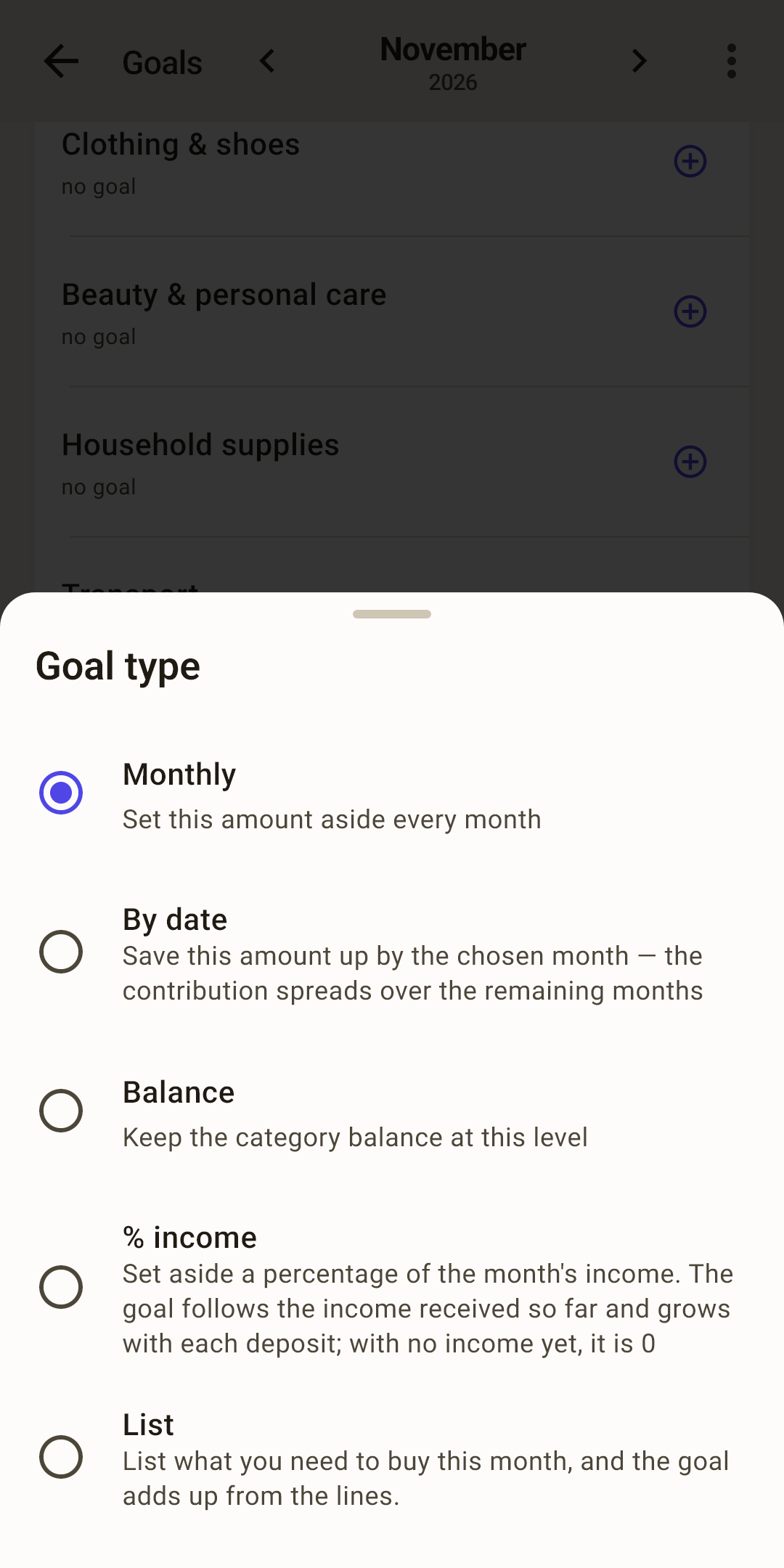
“Goal type” — tap it and pick one of the five. Each says under its name what it's for. Which to use when — below.
“Amount” — tap it and type on the app's keypad. For “% income” there's “Percent of income” instead of an amount, and for “List” — the list's lines.
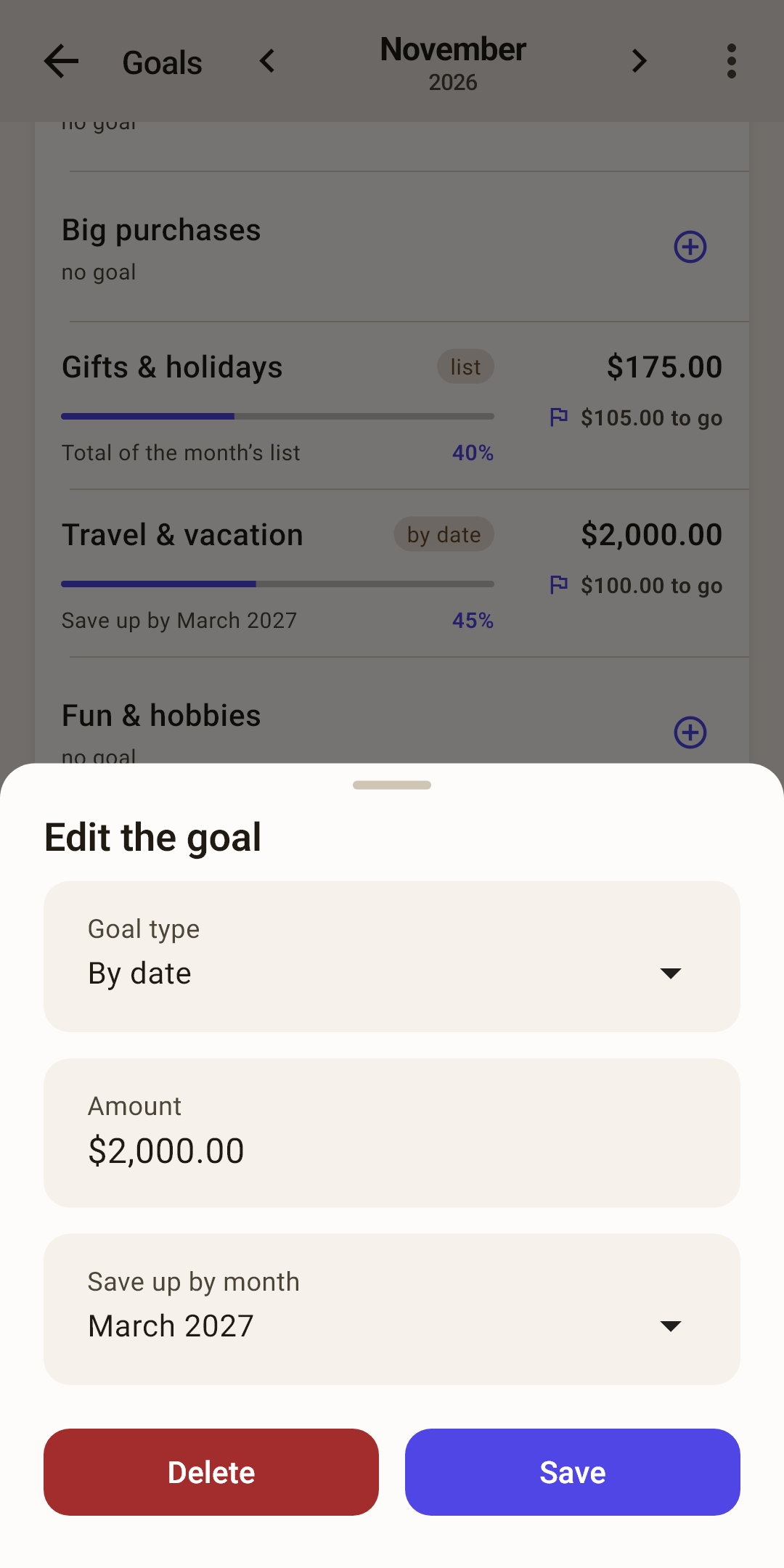
“By date” also has “Save up by month” — the month by which you need the whole amount.
“Save”. Until the amount is set, the button is gray.
Edit or delete — tap a category with a goal — “Edit the goal” opens with the same fields. At the bottom — “Delete” and “Save”. A deleted goal goes away; the money in the envelope stays.
A suggestion from scheduled payments — if the category has a scheduled payment, the goal card on the category screen shows “From the scheduled payment: …”. A payment every month suggests “per month” for its amount; once a year — “save … by the payment”.
Five kinds of goal
The kind of goal is the rule the app uses to work out “how much is needed this month”. Below, each rule with an example from the screenshot.
“Monthly” — for what you spend every month
How it's calculated — every month you need to set aside the same amount. The goal looks at how much you put into the envelope this month, not at how much is left in it.
How it works
“Groceries”, $400 a month. Put $400 in for November — the goal is “Reached”, even if half is already spent. Spending is exactly what this money is for. Put in $270 — “$130 to go”.
For groceries, internet, transport, subscriptions.
“By date” — save an amount by a certain month
How it's calculated — how much is still missing from the whole amount is divided by the remaining months, counting this one. That gives the month's contribution.
How it works
“Travel & vacation”, $2,000 by March. At the start of November the envelope holds $750, so $1,250 is missing. Until March, counting November, there are five months — $250 a month. In November $150 is already set aside — the goal says “$100 to go”.
Skip a month, and the shortfall is spread over the remaining ones, so the contribution grows by itself. Put in more, and the next contributions shrink.
The bar shows something else: how much of the whole amount is already in the envelope. In the screenshot — 45%.
What for — a vacation, insurance once a year, holiday gifts, a spring renovation — everything that doesn't happen every month but is predictable.
“Balance” — keep a reserve
How it's calculated — the envelope should always hold this amount. However much is missing at the start of the month, that's what the goal asks for.
How it works
“Rainy day fund”, $4,000. The envelope has $2,875.47 now — the goal asks for “$1,124.53 to go”. There's no deadline: top it up when you can. Took some of the reserve for a repair? The goal asks you to put it back again.
For an emergency fund, a medicine cabinet, a car repair reserve.
“% income” — set aside a percent of income
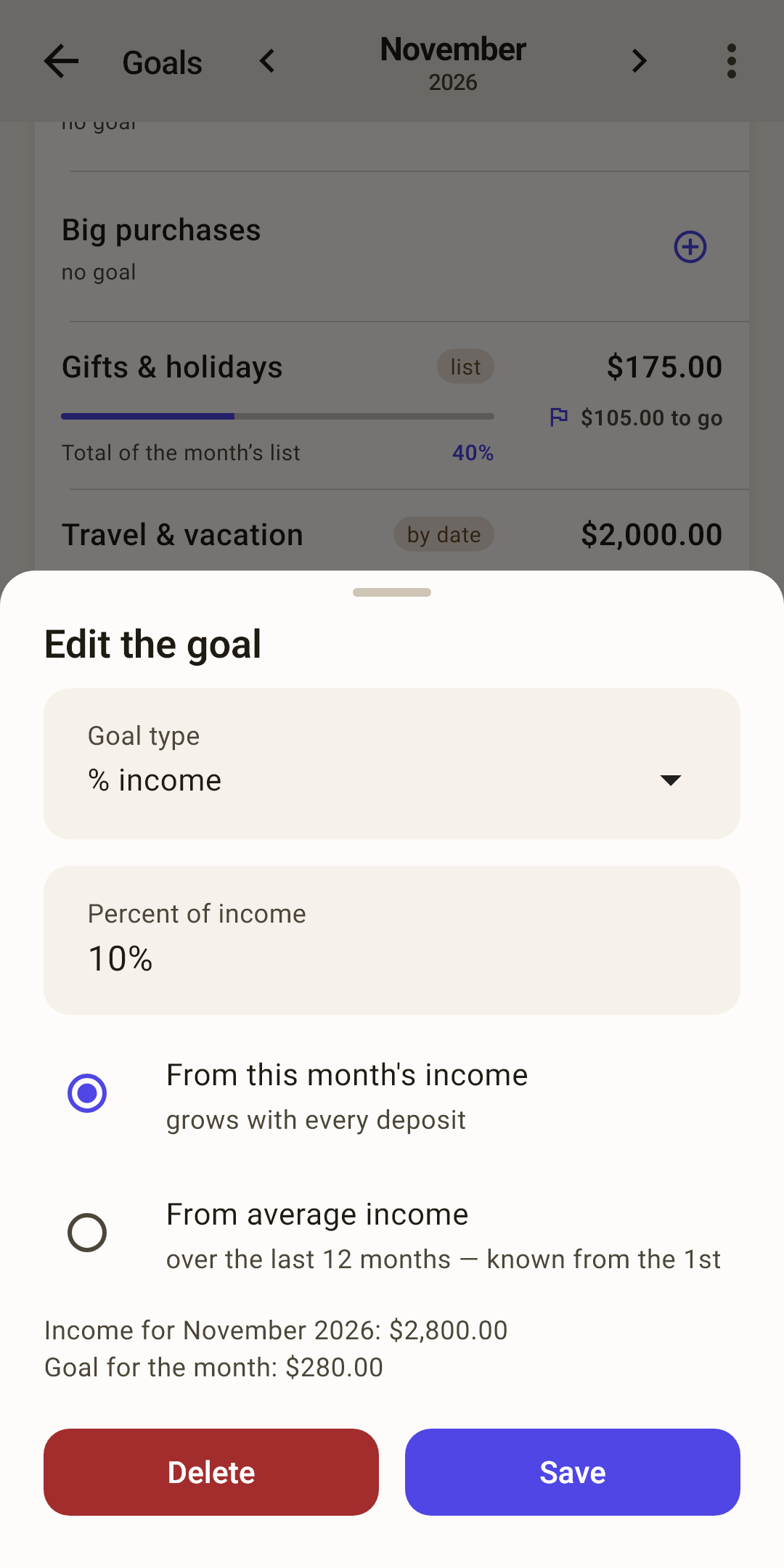
How it's calculated — the month's goal is your percent of income. The app shows the amount right in the sheet: “Income for November: $2,800.00 · Goal for the month: $280.00”.
“From this month's income” — calculated from money that has already arrived. The first part of your pay arrived — one goal; the second arrived — the goal grew. While there's no income in the month, the goal is zero and counts as met. By default: this one is selected.
“From average income” — the average income over the last 12 months. The goal is known from the 1st and doesn't change during the month — handy if you get paid at the end of the month.
What for — “set aside 10% of everything I earn” — investments, savings, donations.
“List” — what to buy this month
A goal made of lines: write down what the category's money will go to this month — and the goal amount adds up by itself. Each month has its own list.
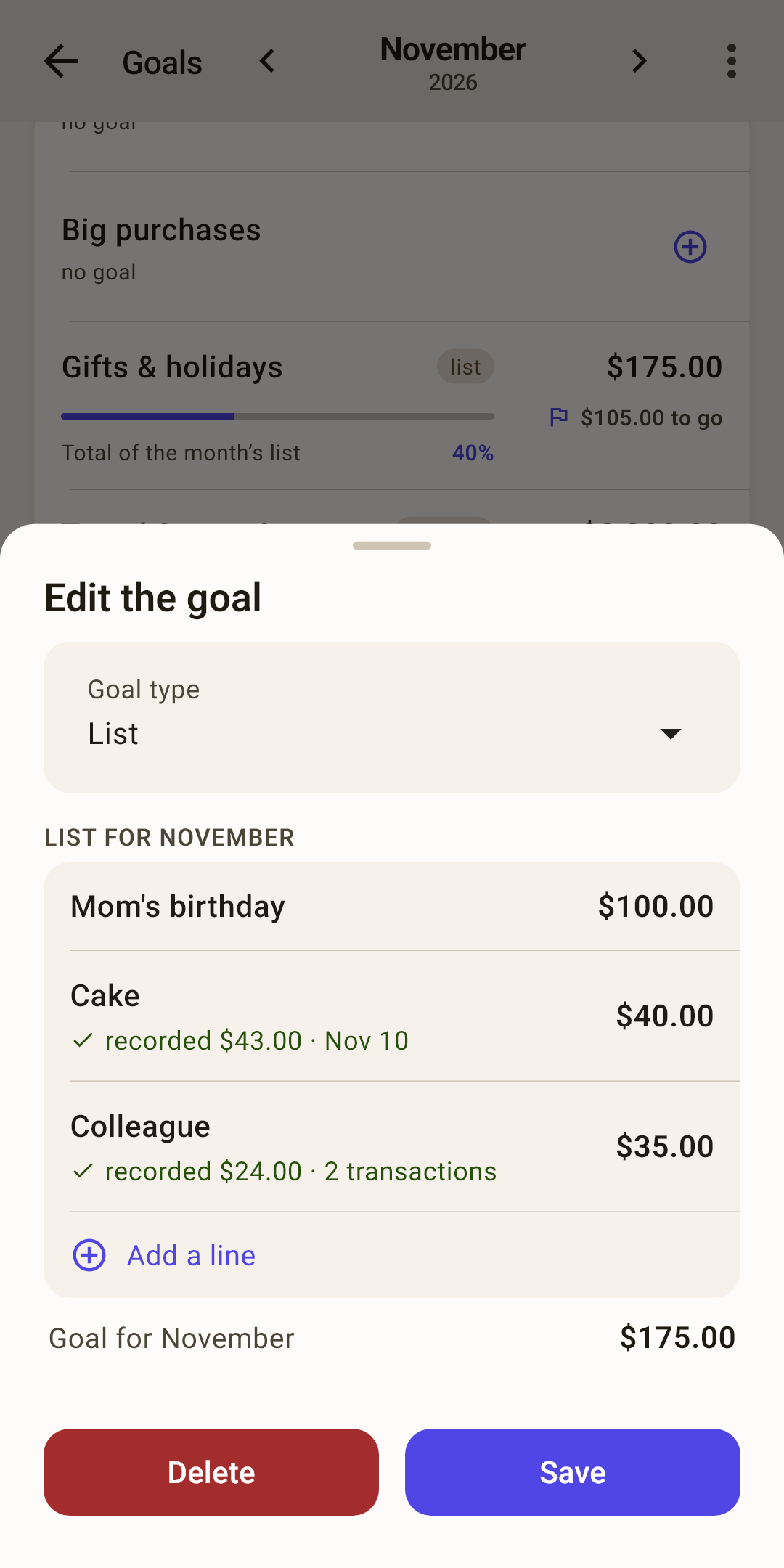
Lines — choose “List” in “Goal type”, and the month's lines appear right in the sheet. “⊕ Add a line” — a name and an amount. At the bottom — “Goal for November”: the total of all lines. Until there are lines, “Save” is gray.
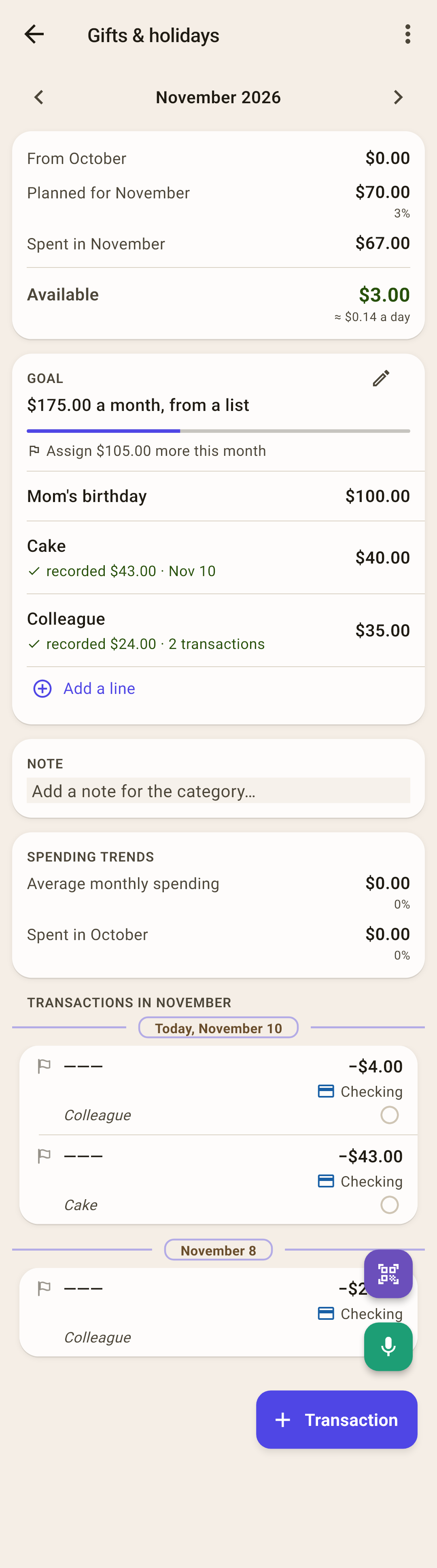
On the category screen — the lines live in the “Goal” card under the bar. That's where you work with them: tap a line to edit it, swipe left — “Enter”, swipe right — “Delete” (with “Undo” in the message at the bottom).
“Enter” — opens the regular transaction form: the planned amount (correct it to the real one), this category, the line's name in the note. Once saved, under the line in green: “✓ recorded $43.00 · Nov 12”, while the planned amount stays on the right: in the screenshot, the cake was planned at $40 and bought for $43.
How it works
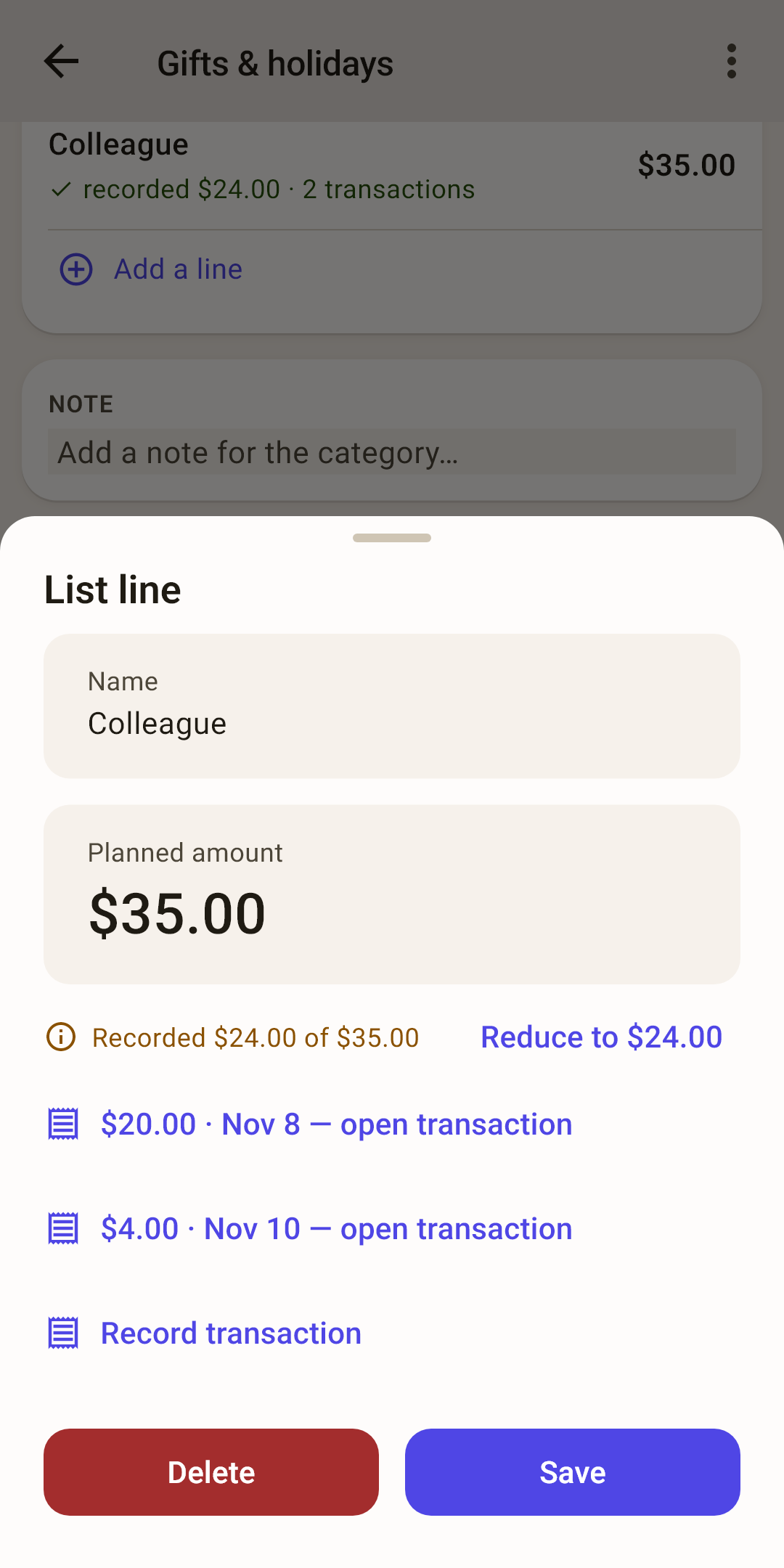
You can record a line again: one purchase can take several payments — tyres, then fitting. The form fills in what is left of the plan, and the line shows the total of all records and their number. The line's sheet has a link to each transaction and “Record transaction”; the “Reduce to …” button makes the plan equal to what you recorded. A recorded line can't be moved to another month.
Move to another month — press and hold a line to turn on selection. Check the ones you want; at the bottom — their total and “⋮”: “Move to December”, “Move to another month…”, “Delete”.
A new month — the list is empty: “The list for December is empty” and a “Copy lines from November · amount” button: last month's lines are copied (without the “recorded” marks), and last month doesn't change.
The “Goal” card on the category screen
Tap a category on “Budget” — its screen opens. Its “Goal” card shows the goal for the screen's month and tells you how much to put in.
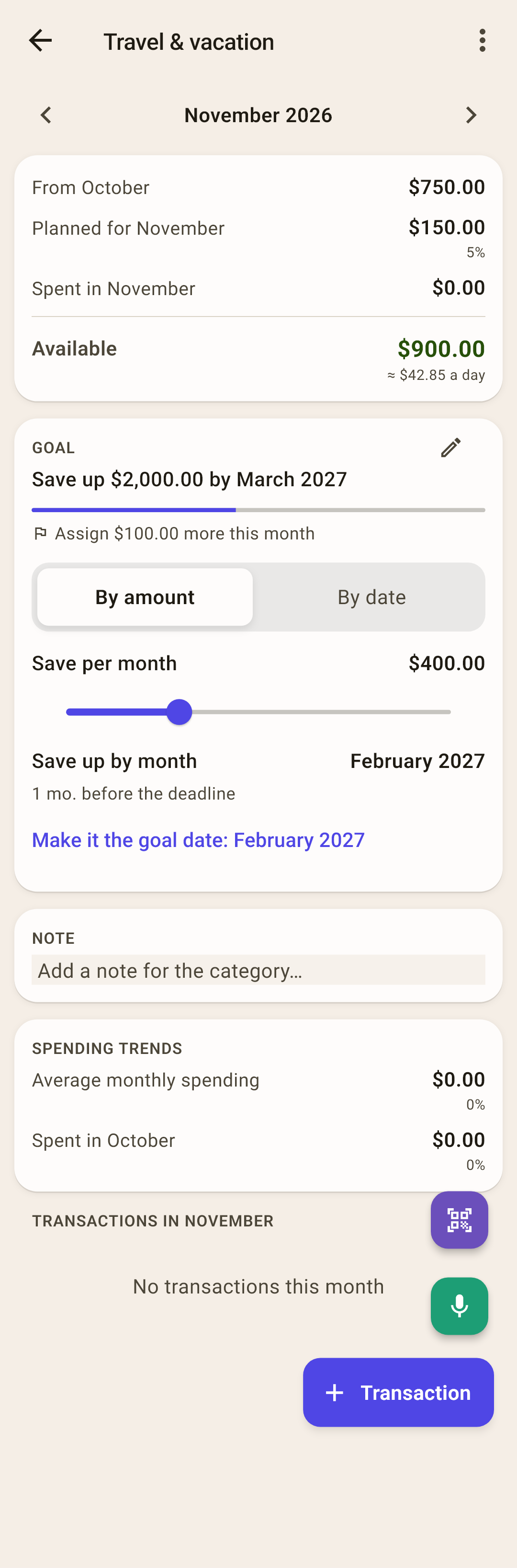
Header — the goal's description and a pencil to edit. Below — a bar and “Assign … more this month” or “The month goal is met”.
“By amount” / “By date” estimate — for a “By date” goal, under the bar: what if you set aside more or less? “By amount”: move the “Save per month” slider — “Save up by month” under it shows when you'll get there, and the line below says “… mo. before the deadline”, “… mo. after the deadline” or “Right on time”. “By date”: move “Save up by month” — under the slider you see how much to set aside per month. Need an exact amount? Tap “Save per month” and type it on the keypad.
How it works
The estimate doesn't save anything: leave the screen, and everything is as it was. Like the new date? Tap “Make it the goal date: …”, and the goal takes it.
In the screenshot: putting in $400 a month, the vacation money is ready in February — a month before the deadline.
No goal — the card has a single button, “Add a goal”. If there's a scheduled payment, a “From the scheduled payment: …” suggestion appears next to it.
Assign to goals
Your paycheck arrived — divide it among all the goals with one button. “Budget” → “⋮” → “Assign to goals”.
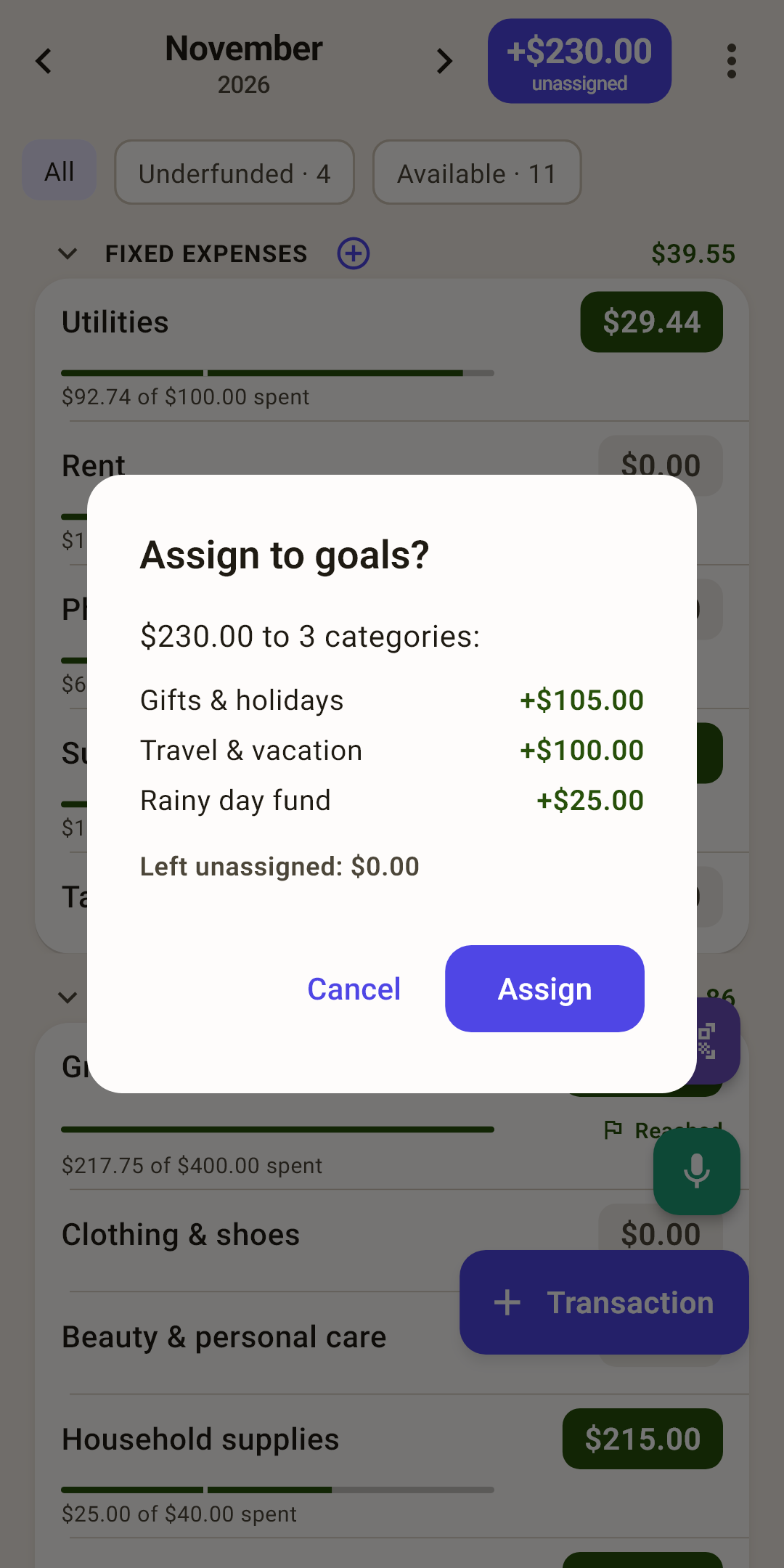
What it does — takes money from “unassigned” and puts it into the envelopes whose goals are short of something this month. First it shows the plan — how much goes to which envelope; “Assign” does it, “Cancel” changes nothing.
If there isn't enough for everything — goals are covered in order, top to bottom, as the categories are arranged on “Budget”, and the last one gets what's left. In the screenshot, $230 was enough for “Gifts & holidays” and “Travel & vacation” in full, while “Rainy day fund” got $25 of $1,124.53. Keep what matters higher up — the order is changed on “Budget”: “⋮” → “Change the order”.
If there's nothing to assign — “unassigned” is empty — the app says so. No goals — it tells you where to set them. All goals are already met — it shows for each how much is set aside and how much is needed.
The same in auto-assign — tap “unassigned” in the “Budget” header — the “Underfunded” mode does the same thing. And the category amount calculator on “Budget” has a “To goal: …” button — it fills in exactly what's missing.
Where else goals show up
A goal isn't visible only here.
“Budget” — a category with a goal has a flag under its amount: “Reached” or “… to go”, and the bar shows the goal rather than spending. The “Underfunded” chip above the list leaves only the categories whose goals are short of something. More in the article “Budget”.
“Overview” — the “Goals” block shows how many goals there are, how many are met and how much more is needed this month. More in the article “Overview”.