
Why
Receipts pile up in your pocket, and in the evening you have to remember where, how much and when. The scanner takes the amount and date from the receipt — no typos in the numbers, and the real day of the purchase, even if you enter the receipt the next day. The receipt is saved in the transaction as an e-receipt: you can throw away the paper one.
Where the button is
The purple button with a QR code sits above “+ Transaction” on “Overview”, in “Activity”, and on the account and category screens.
It shows only if the app knows your country's receipts:
| Country | When the button shows |
|---|---|
| Ukraine | Hryvnia in the budget or on any account, or the phone was bought in Ukraine (region UA). |
| Kazakhstan | Tenge in the budget or on an account, or the phone region is KZ. |
| Russia | Ruble in the budget or on an account. |
| Portugal | The phone region is PT, or the app language is Portuguese and there are euros in the budget or on an account. |
Why by currency and not by language
A language says nothing about the country you shop in: people write in Russian both in Ukraine and in Kazakhstan, and the receipts there are different. The currency, on the other hand, you chose yourself — and it tells where you pay.
In other countries there's no button. But you can save the code from any receipt in a transaction — with the scanner icon in the form's “E-receipt” field (below). And to teach the app to read your country's receipts, send us a few — how.
How to scan
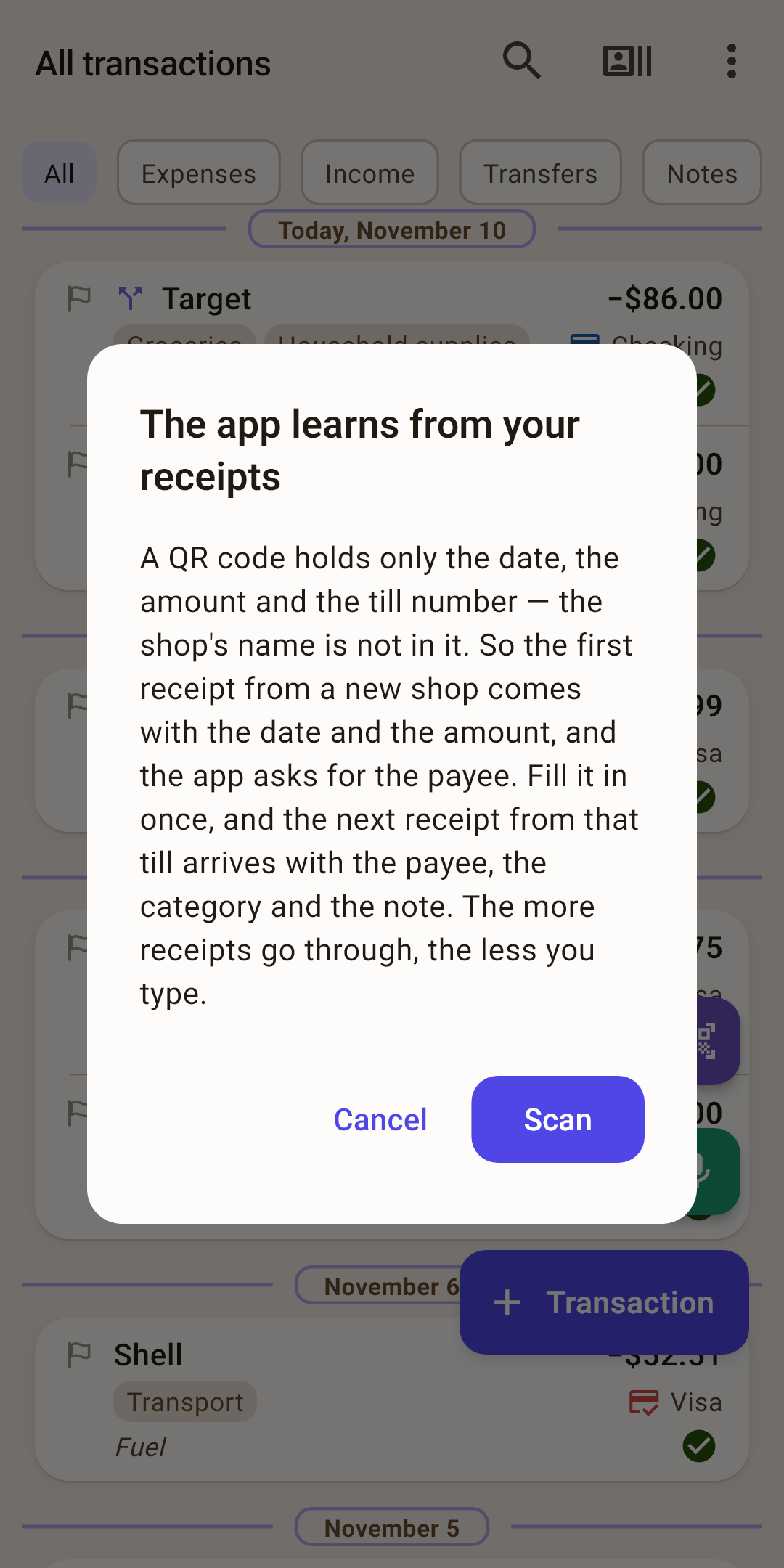
Tap the purple button.
The first three times, the app explains how it learns from receipts (screenshot). Tap “Scan”. Once it has recognized a store, it won't explain again.
The camera opens: “Point the camera at the QR code on the receipt”. The code is read by itself, you don't need to tap anything.
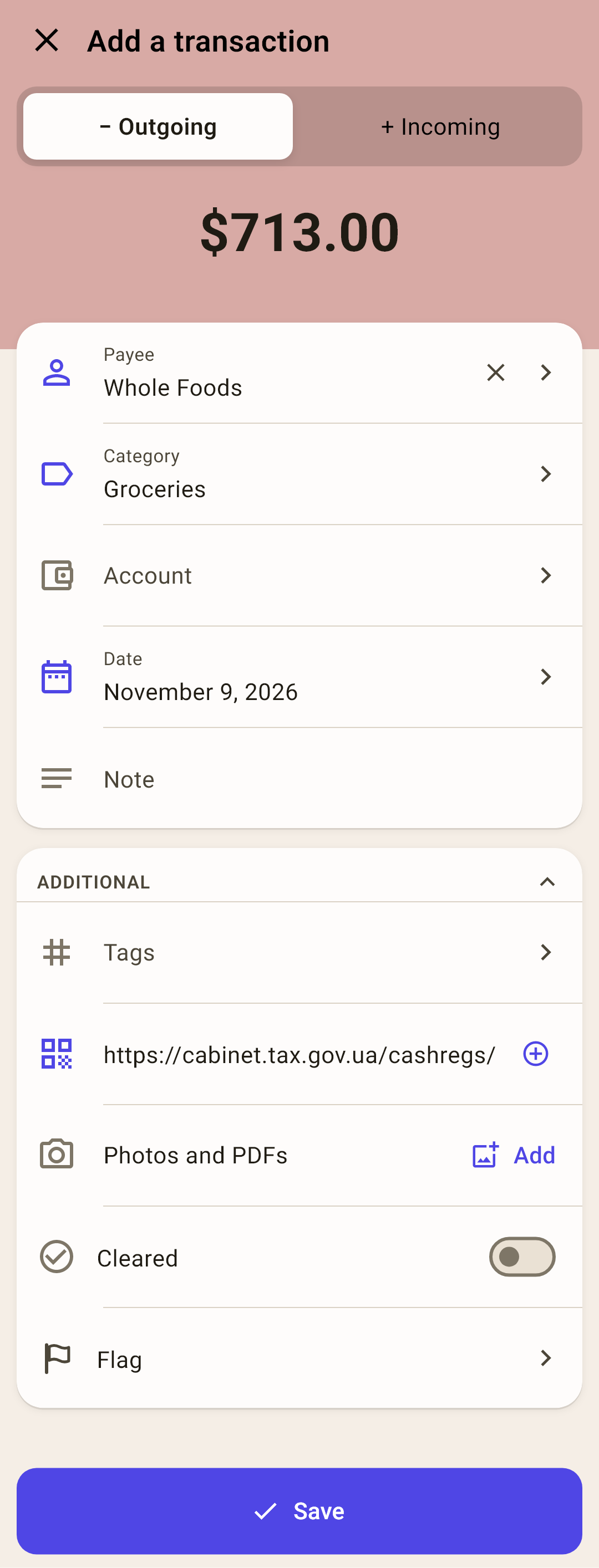
The transaction form opens with the amount, date and receipt. Check it and tap “Save”.
Is the receipt a photo or a PDF on your phone? Under the camera — “Pick from the gallery” and “Pick a PDF”.
What comes from the receipt
A receipt's QR code holds no store name and no list of purchases — only the amount, the date and time, the receipt number and the register number. So:
| Form field | Where it comes from |
|---|---|
| Amount | From the receipt. |
| Date | From the receipt: the day of the purchase, not today. |
| “E-receipt” | The code from the receipt itself. You can open and copy the receipt with it. |
| Payee | By register number: whoever you chose for earlier receipts from this register. |
| Category and note | By payee — as if you'd picked it in the form by hand. |
| Account | The one you paid with at this store last time. |
A register means the same store
A register always belongs to one store. At a supermarket you end up in one line or another — with Ukrainian receipts the app also recognizes a neighboring register of the same store. If neighboring registers lead to different payees, the app stays quiet: better to pick the store yourself than to get the wrong one.
A new store
For the first receipt from a new store, the app fills in only the amount and date — and opens the payee picker right away.
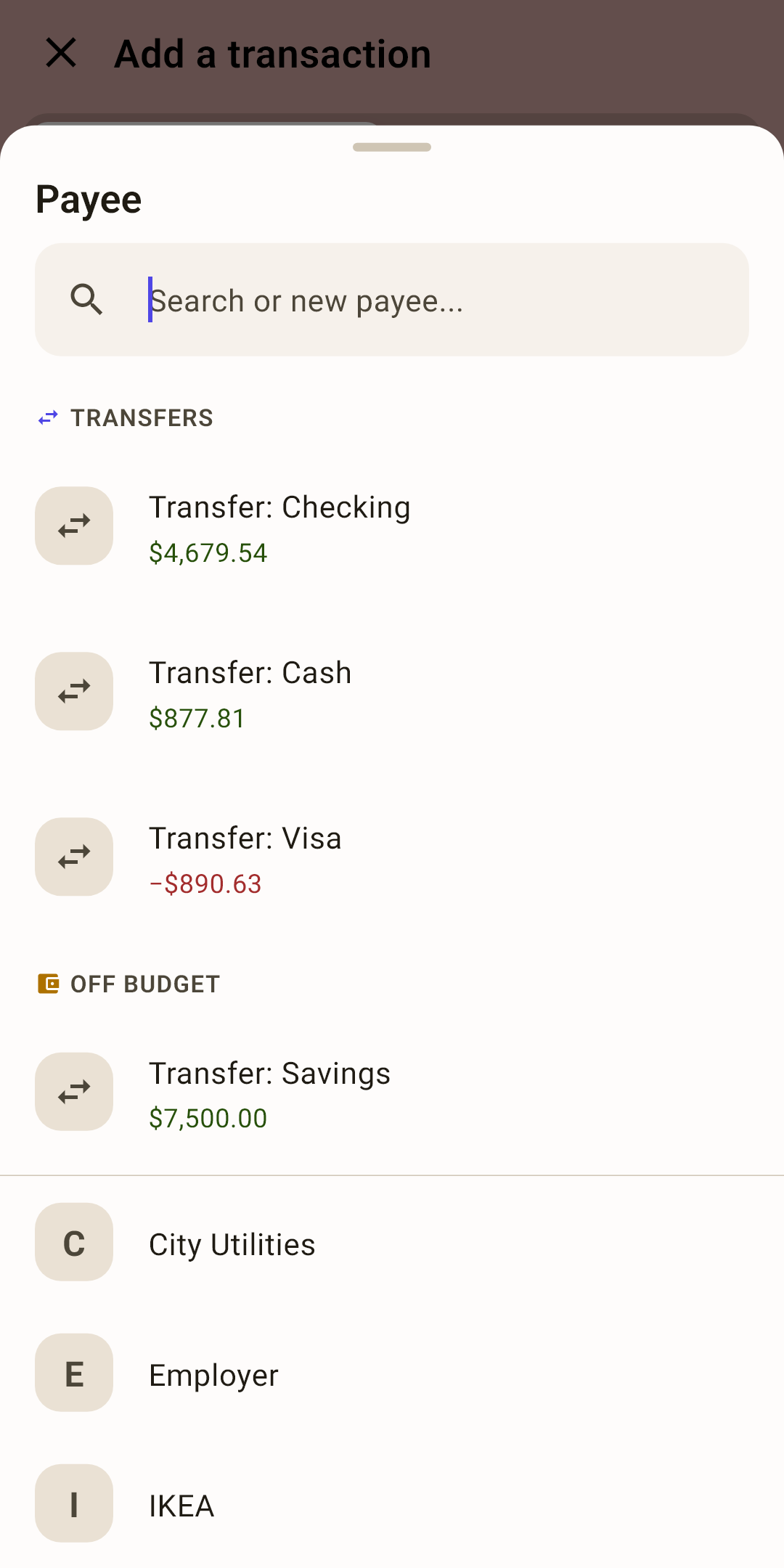
Find the store in the list or type a new name.
The category fills in by itself if you've bought from this payee before.
Choose the account: you haven't paid at this store yet, so the app doesn't know it.
“Save”.
The next receipt from this register arrives with the payee, category and account already filled in.
Repeats and errors
| Message | What happened |
|---|---|
| “This receipt is already entered” | This same receipt is already in a transaction — the date and amount are in the dialog. “Edit” opens that transaction, “Add anyway” — a new one, “Cancel” — nothing. |
| “This is not a receipt the app knows” | The QR code isn't from a receipt, or it's from another country's receipt. The form won't open. |
| “There is no amount in this receipt” | The code was read, but there's no amount in it. Enter the purchase with “+ Transaction”. |
Some register services print a link to their own website on the receipt, with no amount or date — the app can't read such a receipt.
A receipt from a file: “Share”
The receipt came by email, Viber or in your bank's app as an image or a PDF? Tap “Share” there and choose “My Budget”.
A familiar receipt is found — the form opens as it does after the camera, and the app asks “Attach the file to the transaction?”. The e-receipt is added either way; attach the file if you want to see the receipt itself.
There's no receipt in the file, or it's an unfamiliar one — the app says why and offers “Fill in manually”: the form opens with the file already attached.
A receipt in the form
In the transaction form, under “Additional”, there's an “E-receipt” field with a scanner icon. It works with any QR code, in any country: it puts whatever the code says into the field.
If the receipt is a familiar one, the app checks it against the form: it fills in the amount if there isn't one yet, and if the amounts differ, it shows the line “The receipt has a different amount: …” and offers “Fix”. A receipt doesn't change the date in an open form. More in the article “Transaction form”.
A saved receipt shows as an icon in the transaction row, and in the transaction card as “Copy” and “Open” buttons. More in the article “Activity”.
Teach the app your country's receipts
The app reads a receipt without the internet: everything it needs — the amount and date — has to be in the QR code itself. In many countries that's the case: a fiscal receipt's QR code holds the amount, date and register number. If that's true in your country too, we can add its receipts.
Send 5–10 receipts
Take receipts from different stores: a supermarket chain, a pharmacy, a gas station, a small shop. E-receipts — a PDF or an image from an email — work too.
Photograph each so that the QR code and the total are clearly visible.
Send them to “Telegram chat” or by email with “Suggest an improvement” — both in “Settings”, “Help & contact” section. Mention your country.
Several receipts are needed to make sure the code is built the same way across different registers and chains. One receipt can't tell you that.
What to cover in the photo
We need only the QR code, the amount and the date. The last digits of your card, the cashier's name, a loyalty card and anything else personal can be covered with a finger or blacked out — it doesn't affect recognition.
When it won't work
If the receipt's QR code holds only a link to a website — no amount and no date — the data is on that website. The app doesn't go there: it promises to work without a server and without registration. Such receipts stay without the scanner, but you can always save their code in the “E-receipt” field.