
Why
At the checkout your hands are full, but you need to record the purchase right away, while you remember. Typing the amount, choosing the payee, category and account — that's five taps. By voice — one phrase.
Voice doesn't record anything by itself. It fills in the transaction form, and you're the one who saves it — so a recognition mistake never slips into the budget unnoticed.
The microphone button is green, above “+ Transaction” on “Overview”, in “Activity”, and on the account and category screens.
The first time
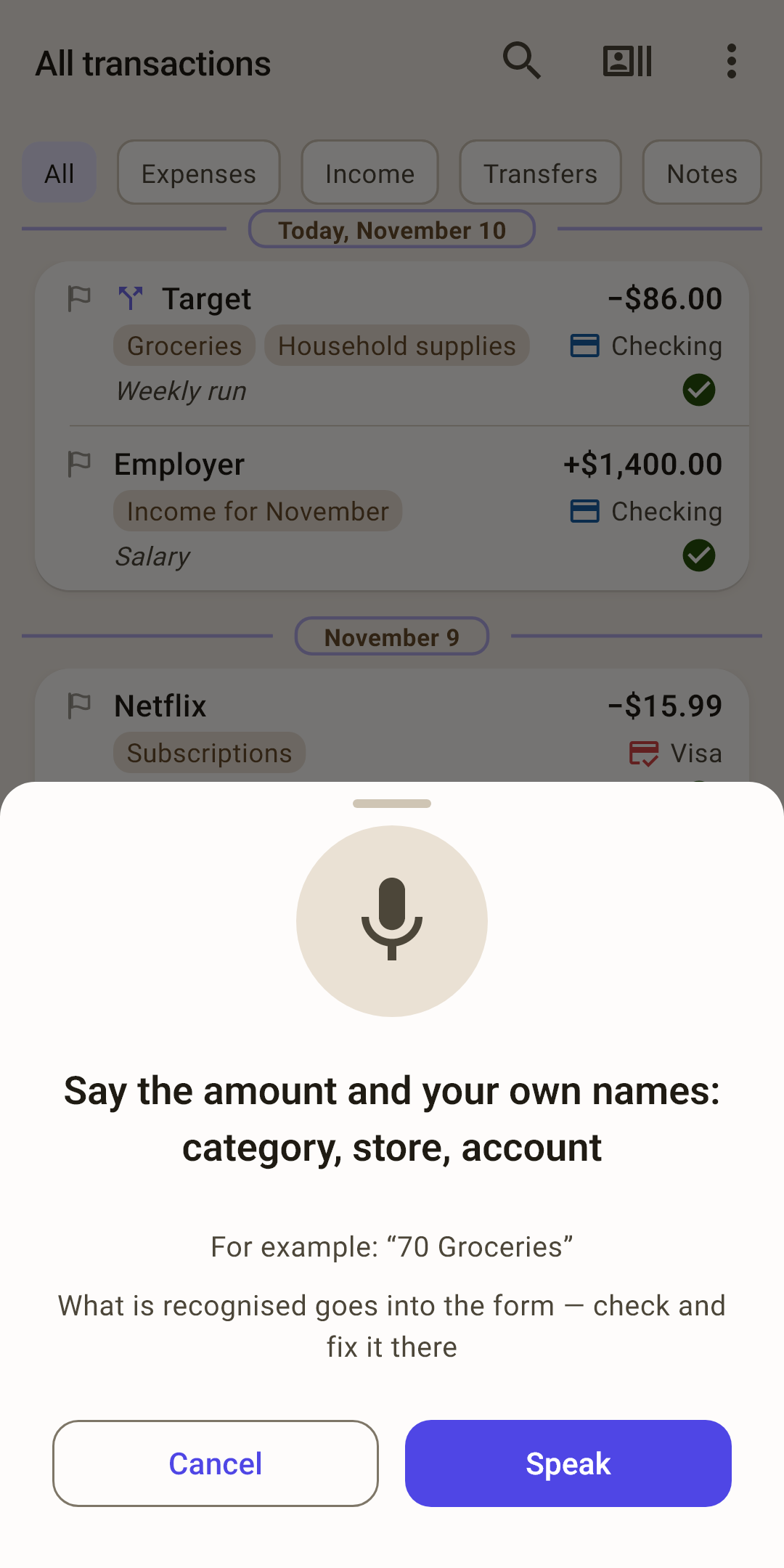
What to say — the amount and your own names: category, store, account.
Example — a phrase from your own budget: your most frequent category and a typical amount. Repeat it — and it will work.
Where it goes — into the transaction form, where you can check and fix everything.
“Speak” — turns on the microphone. The first time, the sheet doesn't turn it on by itself: read what to say first. After that, the microphone turns on as soon as you open the sheet.
The app asks for microphone permission — allow it. Speak, then tap “Done” or just stop talking: the recognized phrase appears on the sheet, and the form opens.
What to say
Start with the amount and category, then add the rest. The example under the microphone grows with you: two successful phrases in a row — and it shows the next step.
The steps on the demo budget:
| Phrase | What gets filled in |
|---|---|
| “70 Groceries” | Amount and category. |
| “Whole Foods 70 Groceries” | Plus the payee. |
| “Whole Foods 70 Groceries note Food” | Plus a note: everything after the word “note”. |
| “Whole Foods 70 Groceries from account Checking” | Plus the account you paid from. |
| “transfer 100 from account Checking to account Visa” | A transfer between accounts. |
| “income 1400 Employer to account Checking” | Income and the account the money went to. |
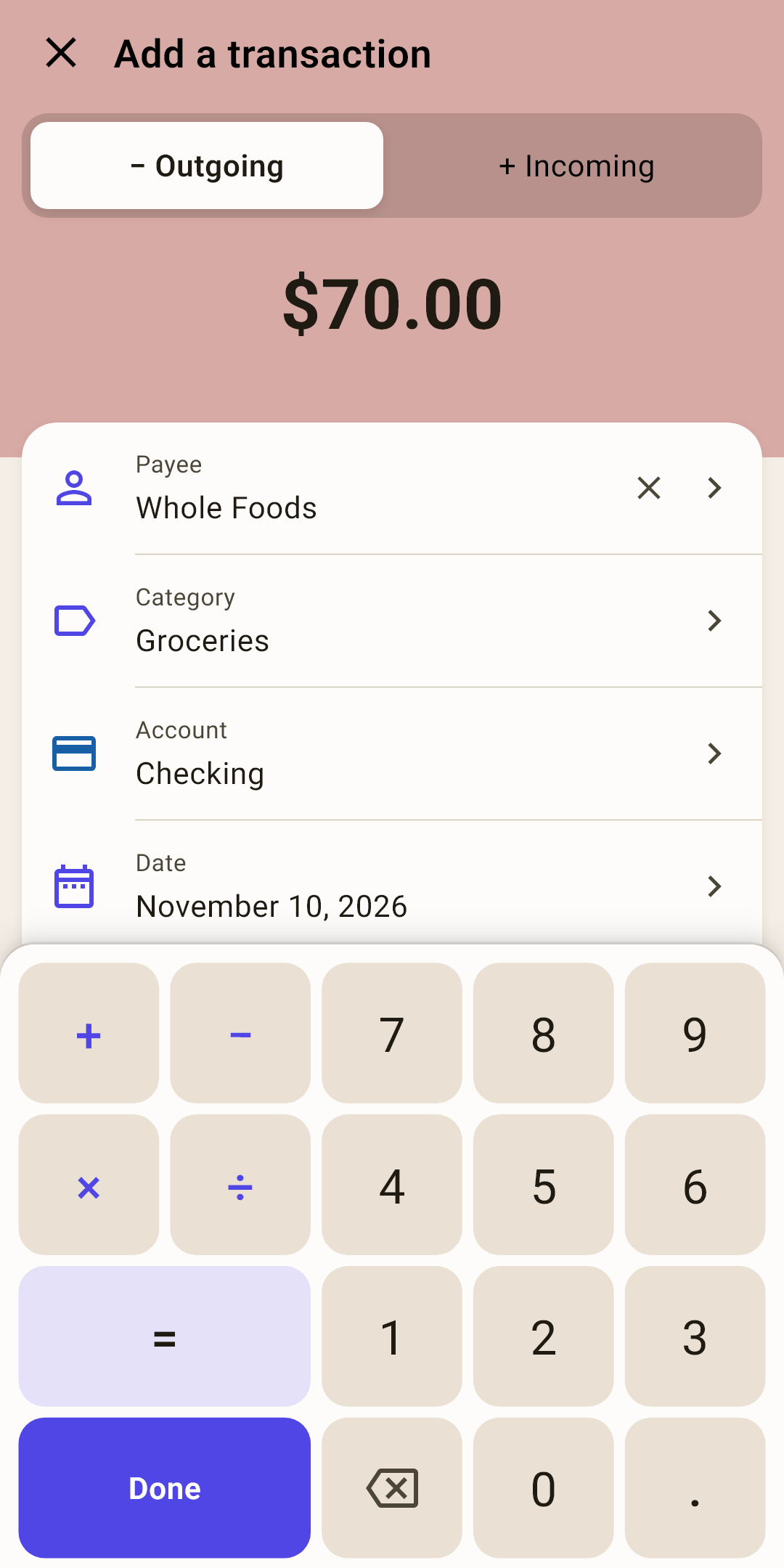
The screenshot shows the form after the phrase “Whole Foods 70 Groceries from account Checking”. The date is today. Check it and tap “Done”, then “Save”.
Words the app understands
“transfer” — a transfer between accounts; “income” — money came in. Without these words, the phrase is an expense.
“from account …” or “from …” — which account it's from; “to account …” or “to …” — which account it goes to. You can leave out the word “account”.
“note” — everything after this word becomes the note. So say it last.
“category …” — if a category name sounds like a store name and the app mixes them up.
Amount
In digits or words — recognition turns “two hundred fifty” into 250 by itself. Cents go after a decimal point: “25.50”. If the phrase has several numbers, the amount is the first one.
How names are recognized
The app looks for your names in the phrase: payees, categories and accounts from this budget. It doesn't create new ones — name a store that isn't in the budget yet, and the “Payee” field stays empty.
The payee brings the category with it
Once the payee is recognized, the category and note fill in from its past transactions, as if you'd picked it in the form by hand. Saying “Whole Foods 70” is enough — the “Groceries” category fills in by itself.
How many words are needed
For a payee, one word from the name is enough. A category with several words needs at least two of them — so that “Health & medical” isn't confused with “Health”. A name said in full is always recognized.
Why the example comes from your budget
An example with made-up names (“Chase 100 groceries Home Depot”) would teach a phrase that doesn't exist in your budget: repeat it, and you'd get an empty form. So the example is always built from your own data — your most frequent purchase, your accounts, a recent note.
Didn't get it all — “To inbox”
Voice recognized the amount, but not the category or store. No time to sort it out at the checkout, and you don't want to lose the purchase. That's what the “Inbox” is for.
Record it now, sort it out at home
Turn on “Settings → Data → Inbox” once.
At the checkout, say the phrase as usual. At the end, add “note” and a couple of words about the purchase — for example, “note pharmacy near home”. The note is saved even if the store and category weren't recognized.
Something's missing in the form? Instead of “Save” there's a “To inbox” button, and on the amount keypad too. Tap it — the purchase is recorded and marked “Sort”.
At home, tap the strip above the navigation or the notice on “Overview”. The form opens these purchases one by one, in the order you recorded them: “Inbox · 1 of 3”. Choose a category and account — “Save”.
The amount, date and everything voice managed to recognize are already in the transaction — with them and the note, it's easy to remember the purchase. If the account was recognized, the purchase has already reduced its balance, and on “Budget” it sits in the “No category” row until you sort it. If the account wasn't recognized, the purchase waits outside the budget and enters it once you choose the account.
What doesn't go to the “Inbox”
A transfer between accounts and a split amount: they need both accounts or all the parts at once. It won't go without an amount either: if voice didn't catch the number, type it in the form. More about the “Inbox” in the article “Transaction form”.
If it didn't understand
| On the sheet | What happened |
|---|---|
| “Did not catch anything — please try again” | The phone didn't recognize a single word. Speak closer to the microphone and tap “Try again”. |
| “Caught neither an amount nor any of your names” | The phrase was recognized, but it has no number and no familiar name. The form won't open — look at the example and tap “Try again”. |
| “No microphone access, or recognition is unavailable…” | The app wasn't given the microphone, or the phone has no speech recognition. Check the app's permissions in the phone settings. |
If nothing was recognized, the example on the sheet becomes one step simpler. If a name was recognized but not the amount, the example stays the same: most likely the phrase just got cut off.
Language
The app listens in the interface language — the one chosen in “Settings”, “Appearance” section → “Language and formats” → “Interface language”. More in the article “Settings”. Under the example it says which language it's listening in.
“The interface language is not installed for speech recognition — listening in …”
The phone has no recognition model for this language, so the app listens in the phone's language. Add the language in the phone's speech recognition settings — and the line goes away.
The words “transfer”, “income”, “note” — in your language
Each language has its own keywords: in Ukrainian “переказ”, “дохід”, “нотатка”, in Russian “перевод”, “доход”, “заметка”. The example under the microphone always shows the words of your language.