
Why this screen
Categories answer “where did the money go”. Here are two other slices of the same transaction feed: who you pay and what for. How much went to “Whole Foods” this year, what the cottage cost, who owes whom for a shared purchase.
How to get there
The “Payees and tags” icon in the “Activity” header. Or “Settings → Data → Payees” and “Tags”. Or “All tags ›” in the “My tags” block on “Overview”.
No need to set them up in advance
Payees and tags appear by themselves the first time you type them in the transaction form. Here you view, rename and clean them up.
Two tabs
“Payees” and “Tags”. The screen remembers which tab you left on.
The “Payees” tab
Everyone you've paid or received money from. Tap any screenshot to open it full screen.
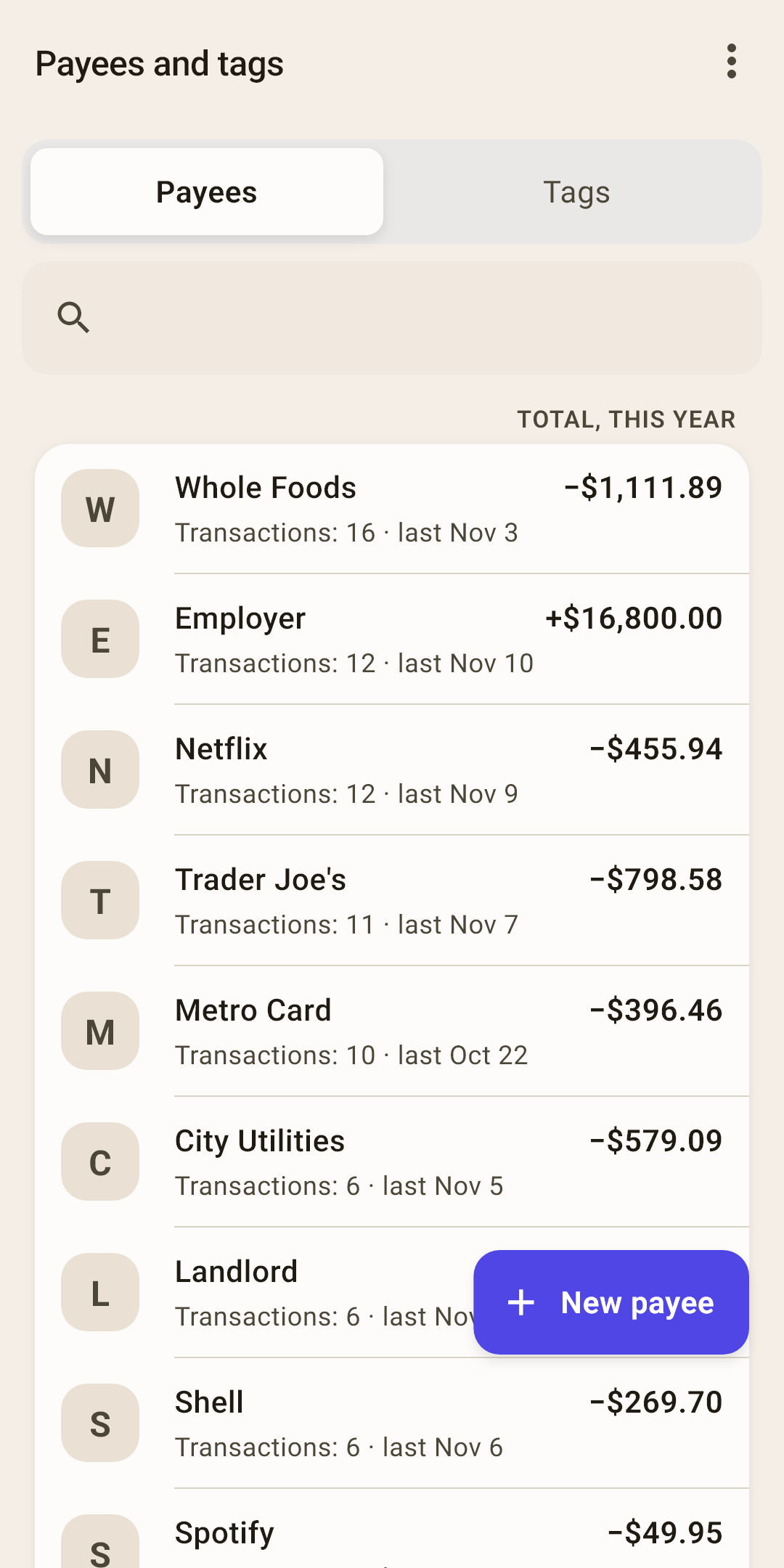
Tabs — “Payees” and “Tags”.
The “⋮” menu — the order of the payee list and the period of the total. Explained to the right of the second screenshot.
Search — type a couple of letters of the name.
Payee — a letter, the name, on the right the total for the period, under the name how many transactions there were in the same period and when the last one was.
How it works
The total is “net” and signed: for a store, a minus after refunds; for an employer, a plus. In the screenshot, “Whole Foods” cost $1,111.89 since the start of the year, and “Employer” brought in $16,800. These numbers have no color on purpose: the sign shows the direction.
Tap a row — the payee screen opens (below). Swipe left — “Edit”: rename. Swipe right — “Delete”: the app asks again and says how many transactions the payee has. The transactions themselves won't disappear; they'll just be left without a payee.
“Total, this year” — the label above the list: which period the numbers on the right cover. Choose the period in the “⋮” menu.
“+ New payee” — add a payee by hand. Usually not needed: the transaction form creates one by itself.
List order
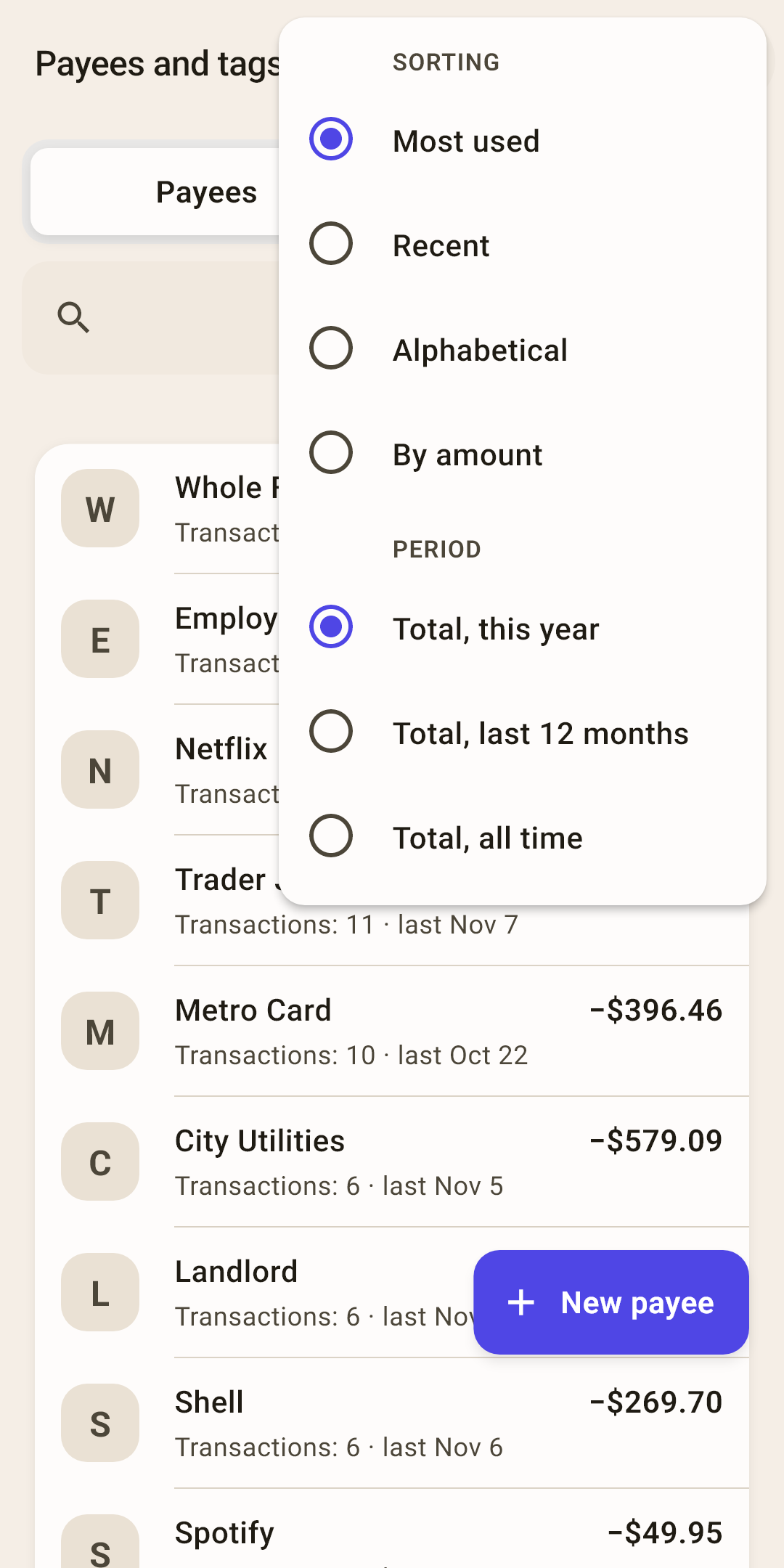
Most used
Those with the most transactions at the top. This is the setting right after installing.
Recent
Those with the most recent transaction at the top.
Alphabetical
Handy when you have hundreds of payees.
By amount
The biggest at the top: both who you pay the most and who you get the most from. The sign doesn't matter, only the size.
Period
“Total, this year” (the default right after installing), “Total, last 12 months” or “Total, all time”. The period sets the amount in each row, “Transactions: N” and the “Most used” and “By amount” orders; the date of the last transaction is always all-time. The year starts on January 1: on January 1 the total starts from zero.
The payee screen
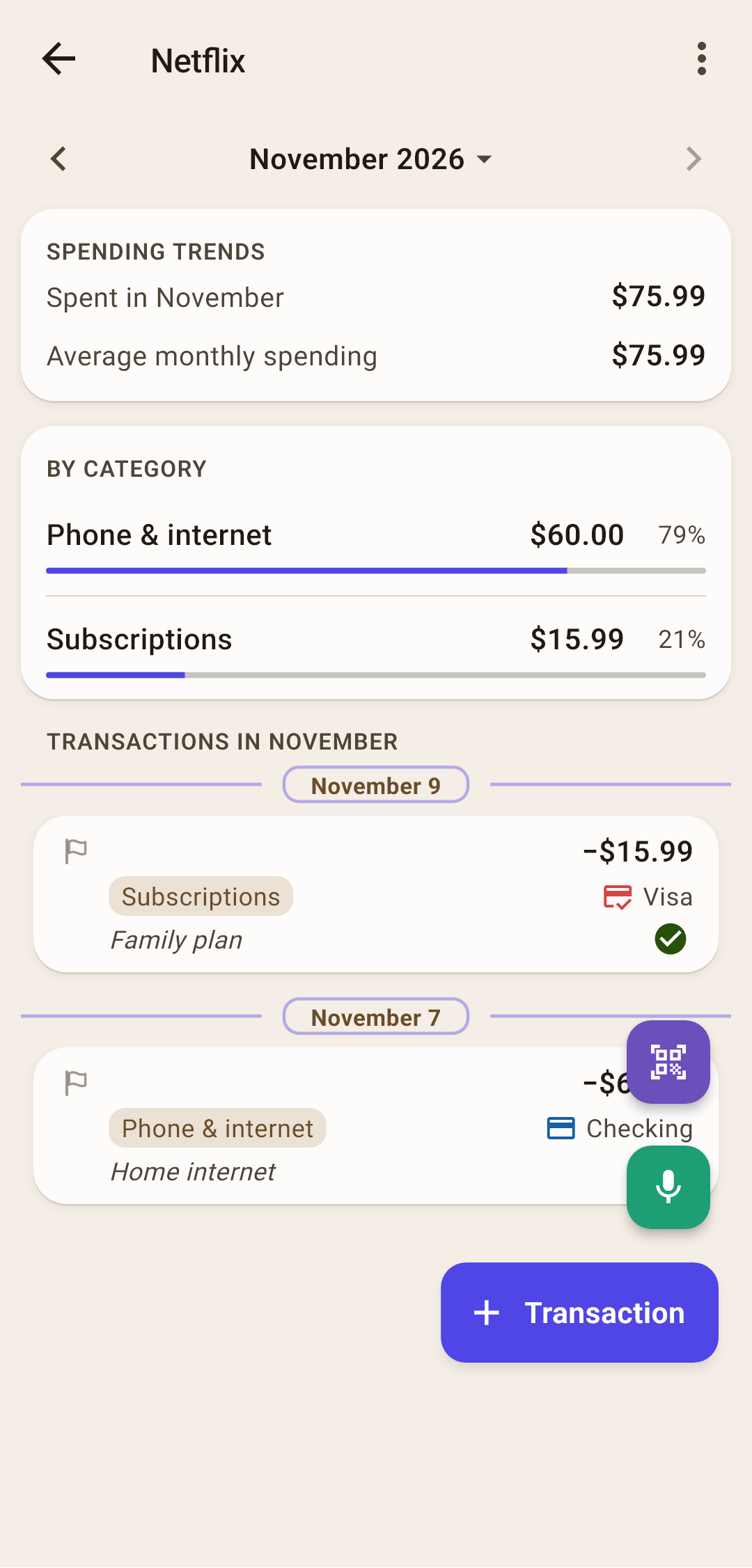
Everything about one payee: how much, on what and when. “⋮” renames, and the “+” at the bottom starts a new transaction with this payee already filled in.
Period
It starts on the current month. The arrows flip through months, and tapping the name opens the “Period” sheet: the same one as in “Reports”.
How it works
Want to see everything that went to a payee in a year? Choose a year or your own range, and the screen shows it in full: the total, the categories and all transactions.
“Spending trends”
How much was spent with the payee over the period and how much on average per month.
How it works
Spending is counted after refunds. If the payee mostly pays you (an employer, a tenant), the block is called “Income trends” and counts income.
“By category”
What the money to this payee went toward. Shows up when there are two or more categories.
How it works
In the screenshot, Netflix has two categories: home internet in “Phone & internet” and the subscription in “Subscriptions”.
Transactions
All transactions with this payee over the period, by day.
The “Tags” tab
Labels on top of categories: “#cottage”, “#vacation”, “#split”. How to put a tag on a transaction — in the article “Activity”.
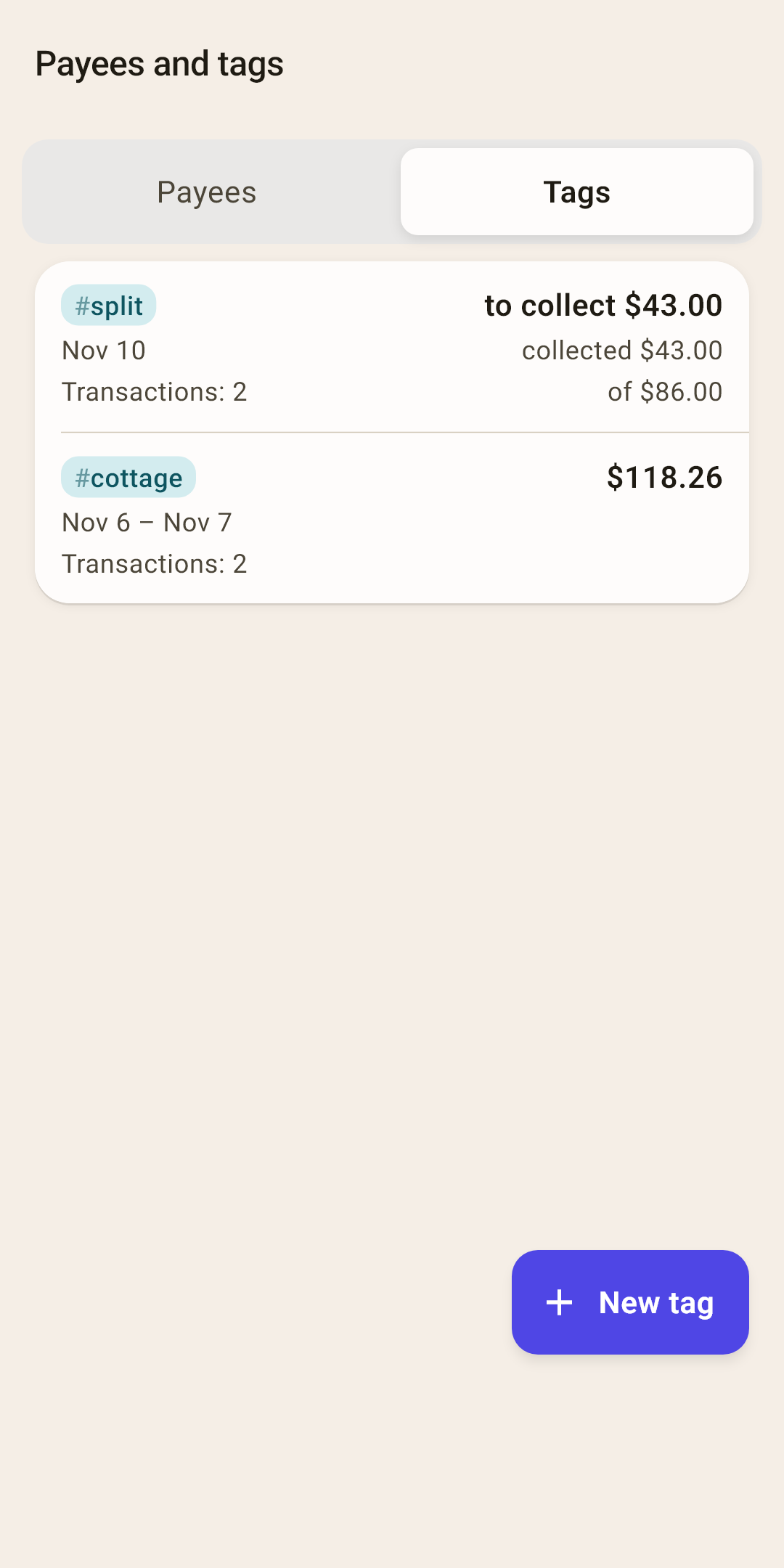
Tag — the name, the total over the tag's whole span, the span itself and the number of transactions. For a tag with “Settle up”, the right side shows how much to collect or to return.
How it works
The order is: tags with an open settlement first, then by how recent the last transaction is, and tags without transactions at the end. Hidden tags are gathered in a separate “Hidden tags” block at the bottom.
Tap — the tag screen (below). Press and hold — a menu: “Rename”, “Settle up”, “Hide from picker”. Swipe left to rename, right to delete.
“+ New tag” — add a tag by hand. Usually tags are created right in the transaction form.
The tag screen
Everything that went under one tag — how much, on what and when. This is also where “Settle up” is set up.
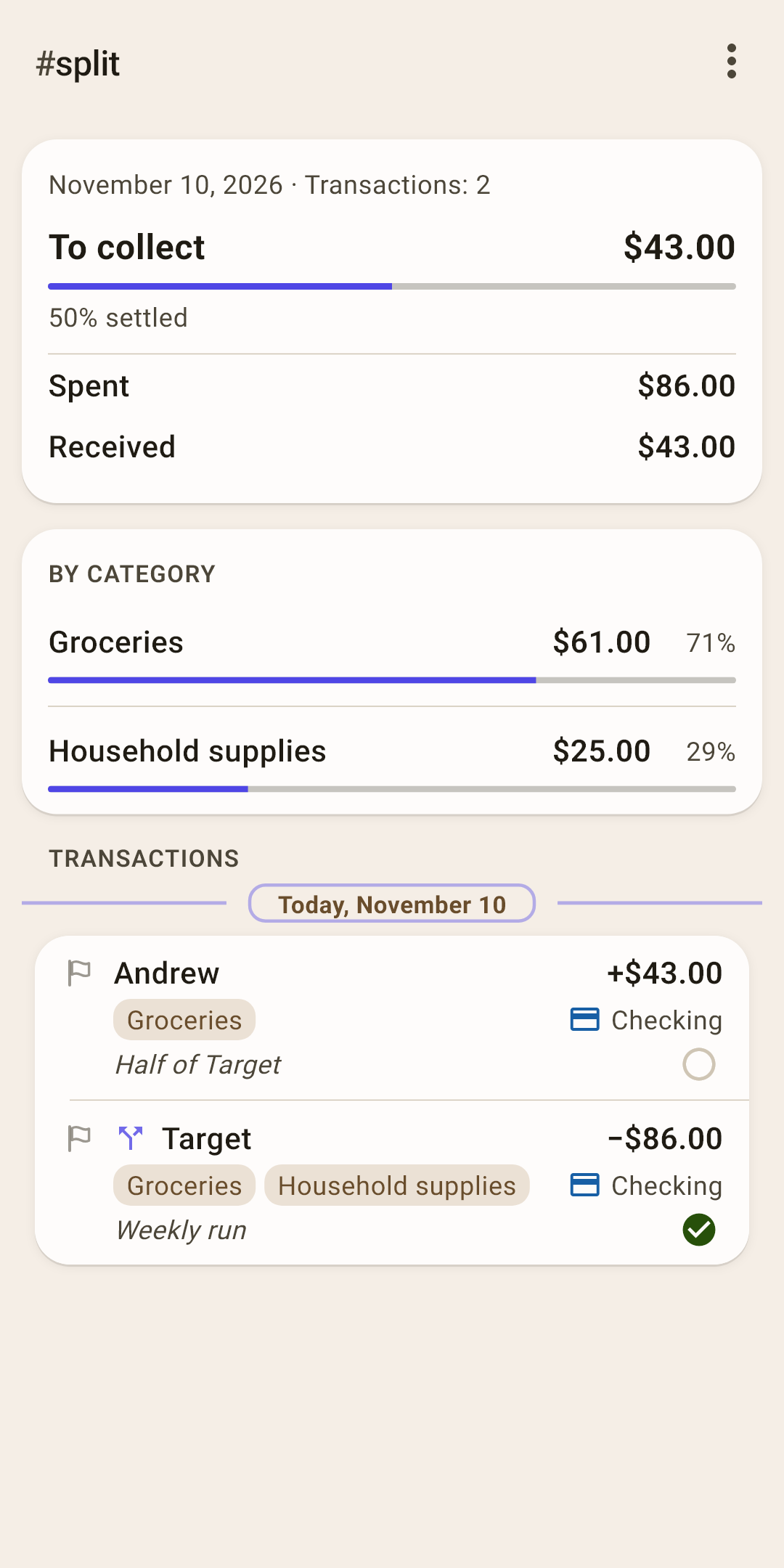
Span and transactions
The first and last day with transactions under the tag, and how many there are. The screen's totals cover the tag's whole span.
Settle up
If “Settle up” is on for the tag: how much is left to break even, and a “N % settled” bar.
How it works
Settling up answers “who owes whom” for a shared cost. The app calculates: spent minus received over the tag's whole span.
“To collect” — you spent more than you collected. In the screenshot: an $86 purchase at “Target” was split with Andrew, he paid back $43 — $43 is left, 50% settled.
“To return” — you collected more than you spent: for example, everyone chipped in for a gift, and there's change left over.
“Settled” in green — everything adds up.
Record money from a friend as a refund to the purchase's category, with the same tag — as in the article “Transaction form”, section “Refund for a returned item”. “Settle up” doesn't touch the budget or the reports: it's a helper for you.
“Spent” and “Received”
How much went out and came in under the tag. Transfers between your own accounts aren't included.
“By category”
What the money under this tag went toward. A tag on one part of a split amount counts only that part.
Transactions
All transactions with the tag, by day.
The tag's “⋮” menu
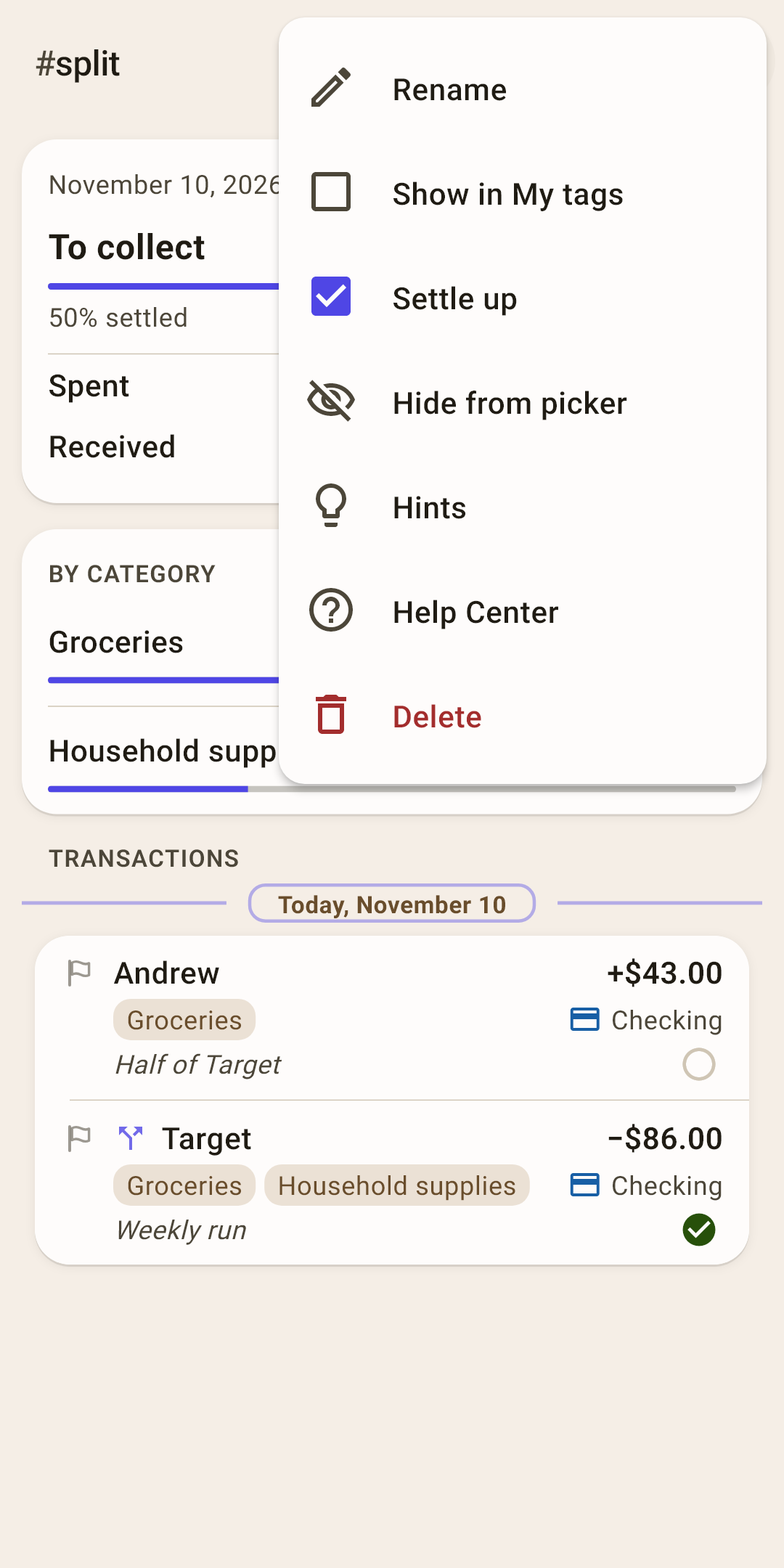
Rename
The new name appears on all transactions with the tag. The app won't accept a name that's already taken.
Show in “My tags”
Add the tag to the “My tags” block on “Overview”. There are four spots; when they're full, the item is gray and says why: “My tags already has 4”.
Settle up
Turn the “who owes whom” calculation on or off for this tag.
Hide from picker
The tag disappears from the picker sheet in the form, but stays on the transactions. Handy for a vacation that's over. For a hidden tag, this spot says “Show in picker”.
Hints
This screen's hints.
Help Center
This article on the website: it opens in your browser, in the app's language.
Delete
The tag is removed from all transactions; the transactions themselves stay. The app asks again.
What you can do with a row
There are no buttons in the rows: tap, press and hold, or swipe with your finger.
| Do this | What happens |
|---|---|
| Tap a payee | The payee screen. |
| Swipe a payee left / right | “Edit” (rename) / “Delete”. |
| Tap a tag | The tag screen. |
| Press and hold a tag | A menu: “Rename”, “Settle up”, “Hide from picker”. |
| Swipe a tag left / right | “Edit” (rename) / “Delete”. |