Who needs this
Phone and computer
Spending from the phone, at the checkout. Planning the month, reports and reviews on a big screen. For the computer there's the “Windows version”: the same budget, its own look made for a mouse. It syncs through Google Drive — if a computer is involved, choose that cloud on the phone too.
Phone and tablet
Dividing a paycheck among envelopes is comfortable on a tablet: “Budget” in landscape is a full-screen table.
A new phone
The old one broke or you upgraded — years of budget move over in a couple of minutes. It's the same scenario: the new phone is the second device.
A cloud connects the devices: Google Drive, Dropbox or WebDAV (Nextcloud, ownCloud, pCloud, your own server). Each device sends its edits there and picks up the others'. How it works in detail — in the article “Cloud and backups”.
On the first device
The one where you already keep the budget.
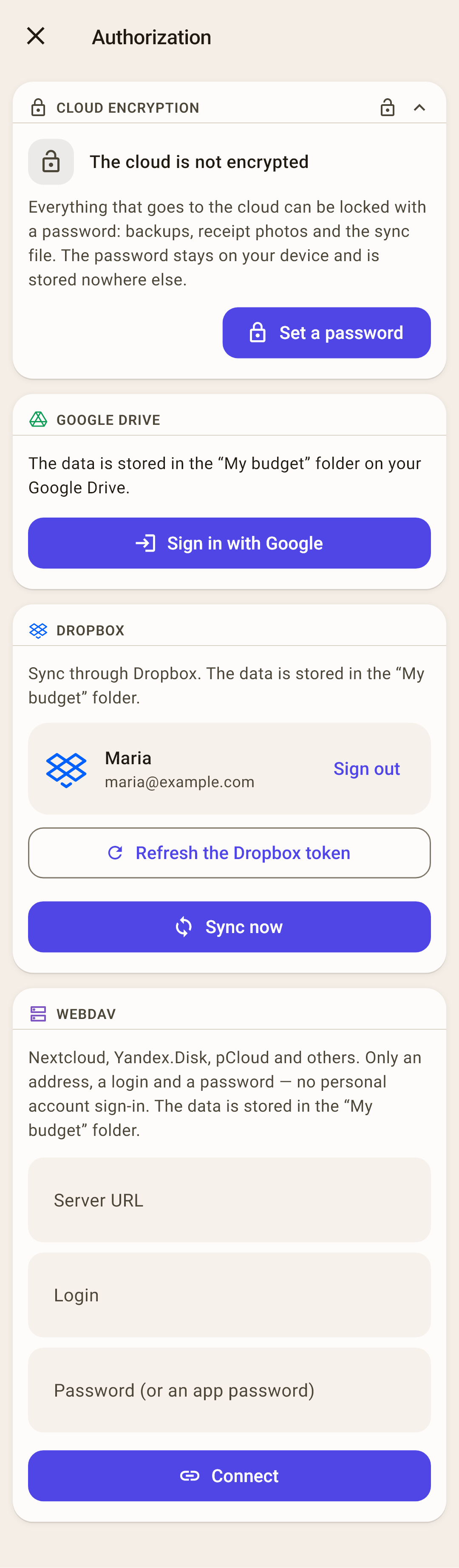
“Settings”, “Sync” section → “Authorization”.
Sign in to the cloud. For Google Drive — with the Google account you'll use on the other devices too. For Dropbox — with your Dropbox username and password, not through Google. Will there be a Windows computer? Choose Google Drive: the Windows version doesn't connect to other clouds.
Want to lock the data in the cloud with a password? — “Set a password” in the “Cloud encryption” block. Write the password down: nobody can recover it.
Go back to “Overview” and tap the sync icon in the top right. The budget goes to the cloud.
 Open the screenshot full size ↗
On the second device
The app was just installed
In the first-launch wizard, choose “I already have a budget”.
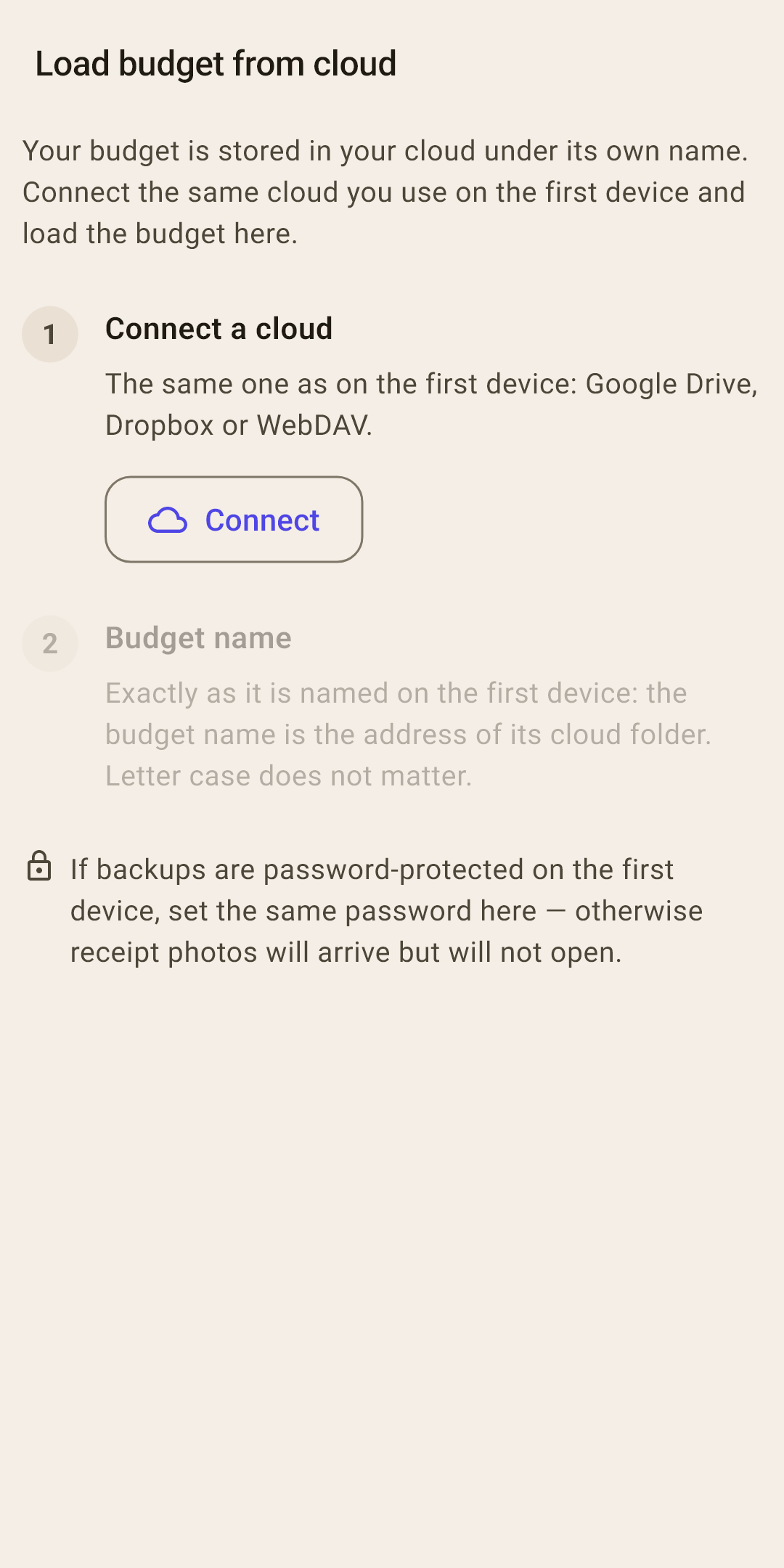
“Load budget from cloud” opens. Connect the same cloud with the same account.
Pick the budget in the list and tap “Load budget”.
If a password is set on the first device, set the same one here.
Check the currency: “Settings” → “Budget currency”. Details — below.
 Open the screenshot full size ↗
The app is already installed, with its own budget
“Settings”, “Sync” section → “Load budget from cloud” — then the same steps. Or tap the budget name in the “Overview” header — “Load budget from cloud” is there too.
How it works
If a budget with the same name on this device already has its own data, on the first sync the app asks whether it's one budget or two different ones: “From cloud” or “Merge”. More in the article “Cloud and backups”.
What's shared and what each device keeps to itself
What syncs is the budget data. Appearance and security settings don't: each device has its own.
| Shared across all devices | Separate on each device |
|---|---|
| Accounts, their icons and colors | Language and formats |
| Categories and groups, category notes | Appearance: style, theme, font, corners |
| Transactions, tags, payees | PIN and fingerprint sign-in |
| Amounts set aside by month, goals and “List” rows | The cloud password — but it must match |
| Scheduled payments | Reminders |
| Photos and PDFs — if “Sync photos” is on | Backup schedule |
| Budget currency |
Budget currency — check it on every device
The budget currency symbol lives on the device and doesn't go to the cloud. A loaded budget gets the currency of the budget that was already on this device — usually based on the phone's country. The amounts don't change, only the symbol next to them. Wrong symbol? — “Settings” → “Budget currency”.
Receipt photos
Right after installing, photos stay on the device where they were taken. For them to appear everywhere, turn on “Sync photos” on the “Sync” screen — on every device.
Every day
You'll rarely need to sync by hand
The app syncs by itself — a few seconds after every time you open it. The number on the sync icon on “Overview” is how many of your edits haven't gone to the cloud yet.
Recorded a purchase and putting the phone away
Once the app is minimized, Android doesn't let it keep working, so the edits go up the next time you open it. If you're about to sit down at your computer, tap the sync icon on the phone so the purchase is already there.
The sync icon's color
Flashed green — all good. Red — it didn't work; a single failure usually just means no network. If the icon stays red, sync has failed several times in a row — open the “Sync” screen, it says what happened.
Common mistakes
| What happened | Why, and what to do |
|---|---|
| The second device doesn't have the first one's edits | The devices signed in to the cloud with different accounts — each writes to its own cloud. Sign in everywhere with one account. |
| “The cloud is password-protected” | The password is set on one device, and on the other it's not set or different. Set the same one. |
| Photos arrived but won't open | Same thing: the password differs between devices. |
| Renamed the budget — the second device stopped seeing edits | The budget name is the address of its folder in the cloud. After renaming, rename the budget exactly the same way on the other devices. |
| “Conflict” | The same record was changed on two devices before they synced. The card shows both versions — choose the one you want. |
Without a cloud
Don't want a cloud? You can move the budget between your own devices directly: as a file or over Wi-Fi on the same network. It's a one-time transfer, not ongoing sync: you'll have to transfer edits again. Good for moving to a new phone. More in the article “Cloud and backups”.