Why all this
The budget lives on your phone. This section of the settings answers three questions.
“My phone fell in the lake” — three years of budget shouldn't sink along with it. Backups and the cloud help: a new phone loads the budget from the cloud.
“We keep the budget together” — or it's just you, but with a phone and a computer. All devices look at one cloud and exchange edits: that's sync.
“I messed everything up yesterday” — deleted the wrong account, imported the wrong file. The app makes backups on a schedule by itself, and you can go back to them.
Where to start. Three steps are enough:
Connect a cloud — Google Drive, Dropbox or WebDAV (Nextcloud, ownCloud, pCloud, your own server).
Set a password if you don't want anyone else to be able to read your data in the cloud. Write it down.
That's it. Sync and backups run by themselves from then on: every time you open the app.
Authorization: connect a cloud
This is where you sign in to a cloud. There are three, and you can connect one or several. In the screenshot Dropbox is already connected, while Google Drive and WebDAV aren't yet: that way you see both kinds of block.
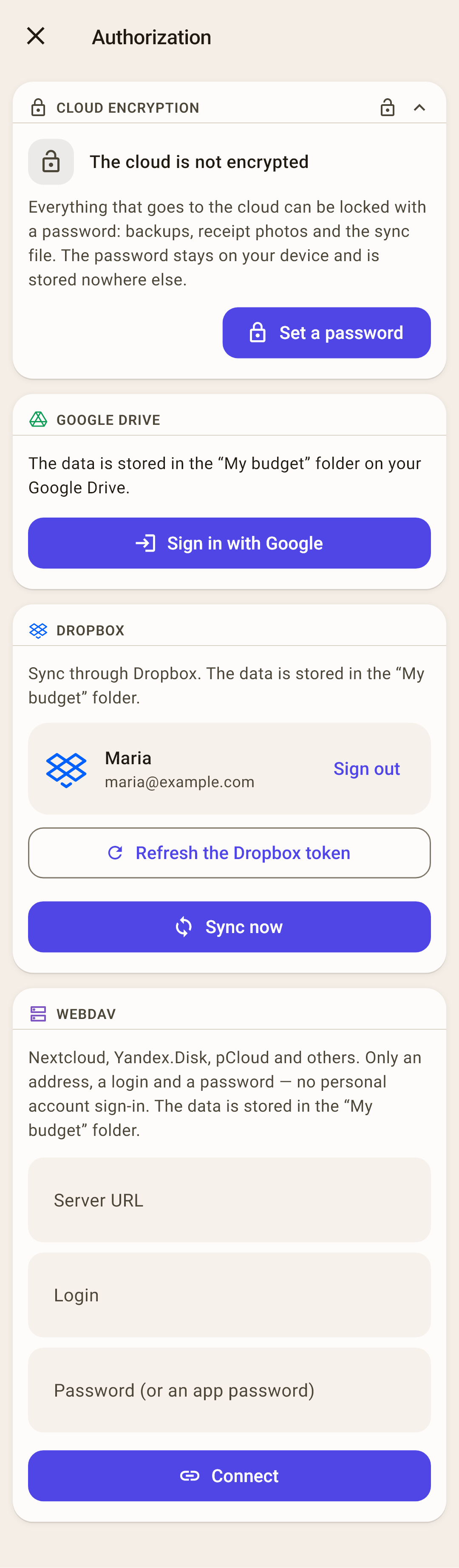
Cloud encryption — the same block as on the “Sync” and “Backups” screens. The password is set once — explained below.
Google Drive — “Sign in with Google” — and choose an account. The budget goes into a “My budget” folder on your Google Drive.
How it works
After signing in, an account plate replaces the button: name, email, time of the last sync, and “Sign out”. On Google Drive the app sees only what it created itself: other files aren't available to it.
Dropbox — “Sign in with Dropbox” opens the Dropbox sign-in page in your browser. You can sign in there in two ways: with your Dropbox email and password, or with the “Continue with Google” button. Allow access — and the browser brings you back to the app. The budget goes into a “My budget” folder.
Why your Dropbox email and password are better
Signing in with Google ties Dropbox to the Google account you used. A second device, or a second person with a different Google account, can easily end up in a different Dropbox that doesn't have your budget. A Dropbox email and password work the same on any phone or computer, for anyone you keep the budget with.
A fallback, if you weren't brought back to the app
The main sign-in — coming back from the browser — is usually enough. If the browser never brings you back to the app, expand “Trouble signing in?” → “Sign in with a code (if you were not returned to the app)”: Dropbox shows a code, paste it into the app's dialog.
The screenshot shows a connected Dropbox: an account plate with “Sign out” and “Sync now”. “Refresh the Dropbox token” there is a fallback too: only for when sign-in suddenly stops working.
WebDAV — your own server or a cloud that speaks WebDAV: Nextcloud, ownCloud, pCloud, Yandex Disk and others. You need an address, a username and a password — no need to sign in to a personal account.
How it works
If the cloud has two-factor protection turned on, the server won't accept your regular password: create an “app password” in the cloud's settings and enter that. Start the address with https:// — with http:// the username and password travel as plain text, and the app warns you about it.
The main rule: one cloud account for all devices
The phone, tablet and computer that keep one budget sign in to the cloud with the same account. Otherwise each device writes to its own cloud, and they won't see each other's edits.
What if our family has different Google accounts?
Create a separate, new Google account for the budget and sign in to the app's cloud only with it, on all devices. Don't sign in to your personal account on your wife's phone, or to hers on yours: the phone will start syncing contacts, messages and photos with that account, and two people's personal data will get mixed up. A separate budget account knows only about the budget.
Dropbox — sign in with your Dropbox username and password, not with the “Continue with Google” button. Signing in with Google ties Dropbox to the Google account you used — and on a device with a different Google account it's easy to end up in a different Dropbox that doesn't have your budget.
WebDAV — the same address, username and password on all devices.
Sync
Exchanging edits between this device and the cloud, and through the cloud — with your other devices. Add a purchase on the phone — a minute later it's on the computer.
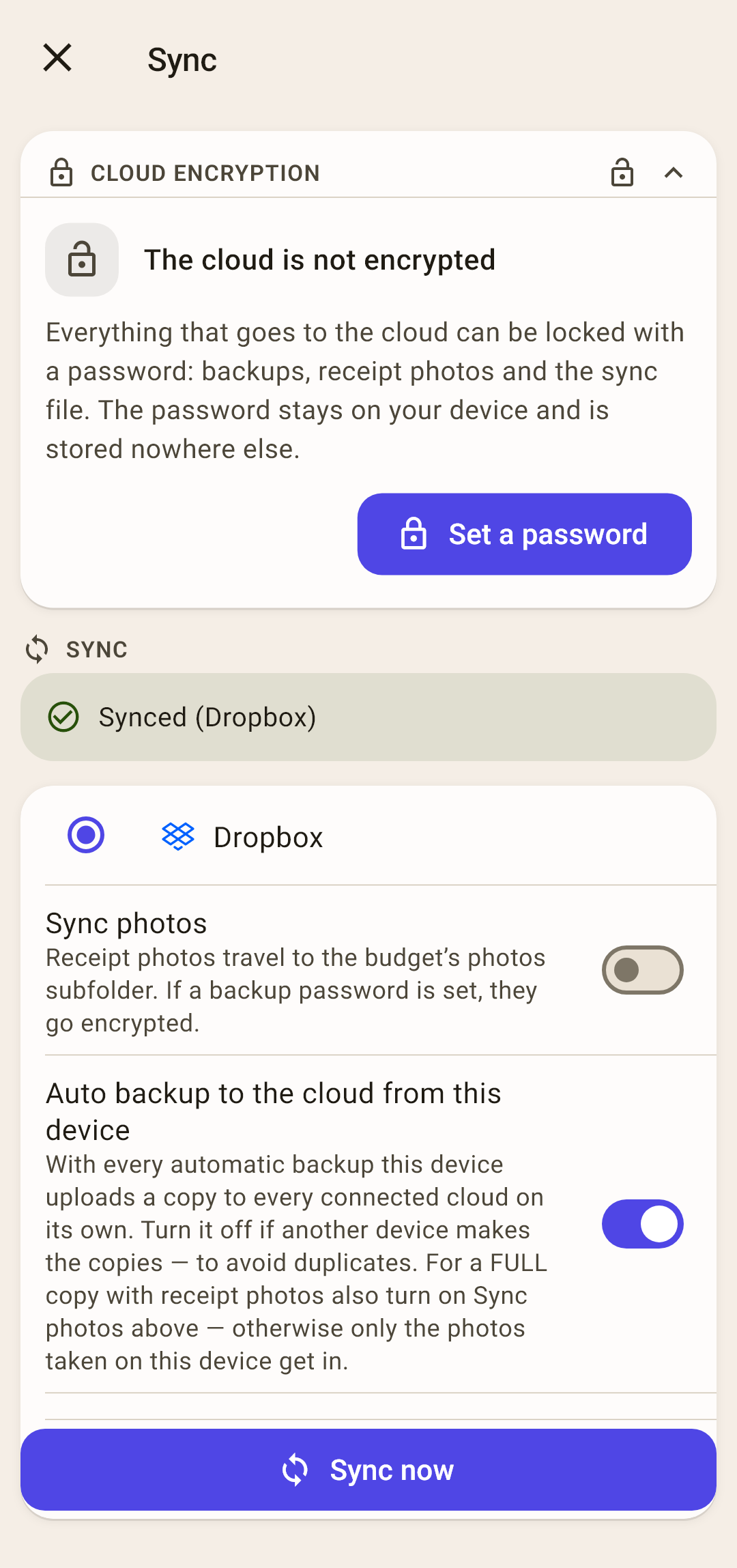
Cloud encryption — a password on everything that goes to the cloud. Explained below.
Status — how the last sync ended: “Synced (Dropbox)” in green, an error in red, with a “Report a problem” button.
Cloud — if several clouds are connected, choose which one to sync with. No cloud — this spot says “No clouds are connected” and tells you where to connect one.
How it works
All devices sync through ONE cloud. The app also refreshes the other connected clouds every few days — in case the main one becomes unavailable.
Sync photos — receipt photos and PDFs go to the cloud, into the budget's folder, and appear on other devices. Right after installing: off.
How it works
Without this switch, transactions arrive on the second device with a photo mark, but the picture itself isn't there. Every photo takes space in the cloud; if you only look at receipts on the phone where you took them, there's no need to turn it on. With a password set, photos are uploaded encrypted.
Automatic cloud backup from this device — every automatic backup of the budget also goes to the cloud. Right after installing: on.
How it works
If two devices keep the budget, both make cloud backups — and you get duplicates. Keep the switch on on one device and turn it off on the others. For the cloud backup to have all receipt photos, also turn on “Sync photos”: otherwise only photos taken on this device go into the backup.
Sync now — sync right now. Usually you don't need to tap it — the app does it by itself, see below.
When the app syncs by itself
Every time you open it — a few seconds after you return to the app. That's why you almost never need to start a sync by hand.
Not when you minimize it — Android doesn't let an app keep working after you've minimized it. Edits made before minimizing go up the next time you open it. Want to send them right away? Tap the sync icon on “Overview”.
The icon on “Overview” — at the top right. The number on it is how many edits haven't been sent to the cloud yet. Tapping it syncs now.
How it works
After each sync, the icon lights up for 15 seconds: green (it worked) or red (it didn't). A single failure is usually the network: the subway, a cabin in the woods. If four syncs in a row fail, the icon stays red until the next one succeeds — that means something broke, and it's worth opening this screen. Press and hold the icon to see the error text.
The app stays quiet about automatic syncs. The “Synced” message appears only if you started the sync yourself.
If something goes wrong
A card appears on the “Sync” screen: what happened and what to do. Here are the kinds.
“The budget “…” already exists in the cloud with data” — with the “From cloud” and “Merge” buttons under the card.
What happened. You connected a cloud, and it already holds a budget with the same name as the budget on this device — and both already have data. Usually this is a second phone: someone added accounts or a couple of purchases on it first, and only then connected the first phone's cloud. The app can't tell whether it's one budget or two different ones with the same name, so it touches nothing and waits for your answer. It asks once — on this budget's first sync.
What to choose:
This is a second device for the same budget — tap “From cloud”, then “Load”. This device gets the whole budget from the cloud, and what you entered here is lost — enter it again. This is the answer you need most often.
You really did keep one budget on two devices separately and want to bring it all together — tap “Merge”. Everything adds up: what you entered here and what's in the cloud. But accounts and categories you created on each device separately end up side by side — two “Checking” accounts, two “The Corner Cafe” payees — and you'll have to clean up the extras by hand.
These are two different budgets that just have the same name — for example, yours and your wife's, both “Main budget”. Don't tap either button. Rename the budget on this device: tap the budget name in the “Overview” header → the “⋮” next to this budget → “Rename”. With the new name it gets its own folder in the cloud and syncs separately.
Not sure? Make a backup first: “Backups” → “Create a backup now” → “Device”. If the choice turns out to be wrong, you can go back to it.
“The cloud is password-protected” — the data in the cloud is encrypted with a password set on another device, and here it isn't set or is different. The data is intact. “Enter password” — enter the same password, and sync continues.
How it works
“Password lost” is a last resort: the file in the cloud is replaced with this device's data, and the encryption is removed. Other devices' data isn't lost — their edits come back on their next sync. Before replacing, the app makes backups, and saves the old encrypted file next to them — in case you remember the password.
“The cloud is not encrypted” — a password is set on this device, but the data in the cloud is open: encryption was removed on another device. You decide: “Encrypt the cloud” — then the other devices will need to enter the same password — or “Remove the password here”.
“The sync file in the cloud is unreadable” — the file in the cloud is damaged and won't fix itself. “Repair the cloud” makes fresh backups of the budget and overwrites the cloud file with this device's data.
How it works
Edits from another device that hadn't reached this one yet remain only in the damaged file — a copy of it is saved next to the backups. If the second device works, it brings its data back on its next sync.
“Photos from the cloud were not decrypted: N” — the data arrived, but the photos didn't: they're encrypted with a password that isn't set here or is different. Set the same password as on the other device — the photos arrive on the next sync.
“Conflict” — the same record was changed on two devices. The card shows how the versions differ: “Keep” keeps this device's version, “Take” takes the cloud's.
Cloud encryption: the password
The “Cloud encryption” block comes first on the “Authorization”, “Sync” and “Backups” screens. It's one and the same password.
What it locks — everything that goes to the cloud: backups, receipt photos and the sync file. The encryption is AES-256. Without a password, anyone with access to the cloud folder can read these files.
How to set it — tap “Set a password”.
Step by step
The “Encryption password” dialog opens.
Enter the password in “Password” and again in “Repeat the password” — at least 4 characters.
Check “I have written the password down somewhere safe” — without it, “Save” can't be tapped.
“Save”. The block becomes “The cloud is password-protected”.
On other devices — set the same password. The password doesn't sync and goes neither to the cloud nor to the developer — it lives only on the device. With different passwords, sync stops with the “The cloud is password-protected” card.
Forget the password, and nobody can recover the cloud backups. Not you, not the developer, not by any means. Write it down where you keep your other important passwords.
Change or remove it — in the block, tap “Edit” — “Change the password” or “Turn off encryption”. Change the password on all devices: if one keeps the old one, it stops being able to read the cloud.
Backups on the phone aren't encrypted — they sit next to the budget's database itself, and that's open. So when a password is set, “Device” backups in the list carry a “Not encrypted” label — so you don't think everything is locked.
Backups
A backup is the whole budget at some moment: accounts, categories, transactions, goals, scheduled payments and photos. The app makes backups by itself; you come here when you need to go back.
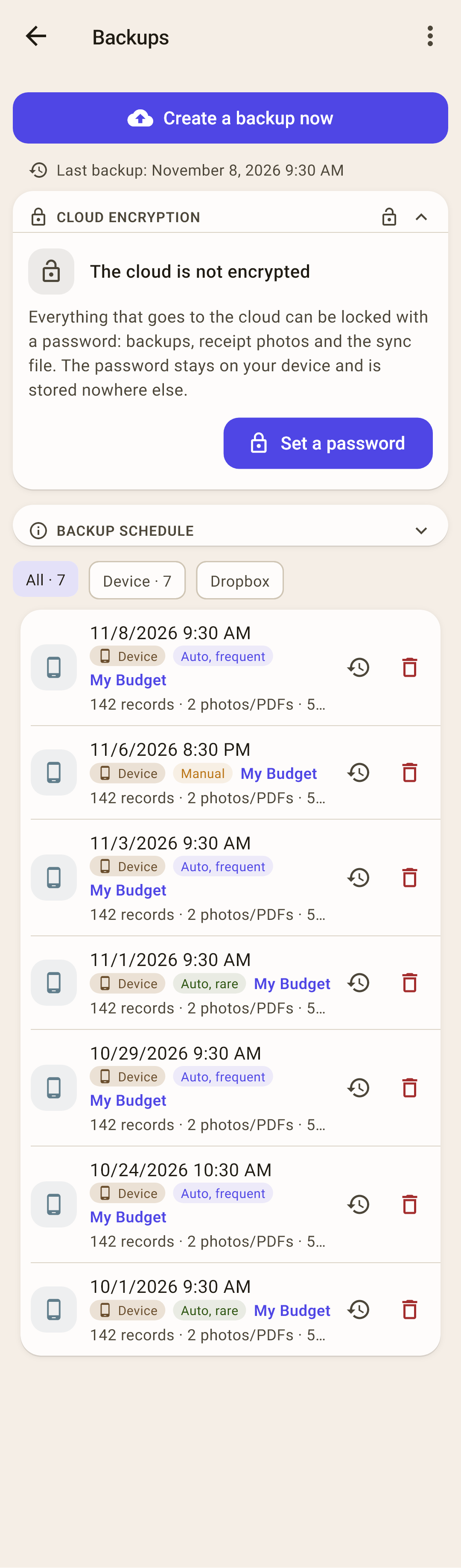
Create a backup now — a backup right now, for example before an import or a big cleanup. The app asks “Where to save the backup?” — screenshot below.
“Last backup” — when the most recent backup of this budget was made. If it's been a while, the line turns yellow.
Cloud encryption — the same password as on “Sync” — above.
Backup schedule — how often the app makes backups and how many it keeps. Tap to expand — below.
Filters — “All”, “Device” and a chip for each connected cloud. The number is how many backups are there. No clouds connected — no filters: there's nothing to filter.
Backup — date and time, where it is, what kind it is and whose budget.
How it works
Under the date — where it is (“Device”, “Dropbox”…) and its kind: “Auto, frequent”, “Auto, rare” or “Manual”. Below — the budget name, how many records, photos and PDFs are in the backup, and the file size.
The clock-with-arrow icon — return the budget to this backup. The trash can — delete the backup (the app asks again).
The “⋮” menu — “Restore from a file”, “Readable copy”, “Hints” — below.
How to return the budget to a backup
Find the backup from the day you need. Not sure which? Take the last one before things went wrong.
Tap the clock-with-arrow icon in its row.
The “Restore the data?” dialog: “The data will be restored from … The current data will be replaced.” — tap “Restore”.
“Restored from …” appears at the bottom. The budget is now as it was at the moment of the backup.
If a cloud is connected, one restore isn't enough.
A backup is restored to get rid of recent edits: deleted the wrong account, imported the wrong file. But a restore changes the budget only on this phone. The cloud still holds the budget with those very edits, and when syncing, the app combines the phone and the cloud, and the more recent edit wins. Tap “Sync now” — and everything you were getting rid of comes back from the cloud within half a minute.
For the rollback to stick, the cloud has to be replaced with the restored budget. How — below.
Roll back the cloud too
The budget is on one phone — these steps are enough. The order matters.
Restore the backup — the steps above. After that, don't tap “Sync now”.
Leave the app with the Home button. While the app is minimized, it doesn't sync.
Delete the sync file in the cloud. Open the cloud in a browser: the “My budget” folder → the folder named after the budget → the
ynab_budget_sync.jsonfile. Delete only that — leave the backup and photo folders alone. In Dropbox, the “My budget” folder is inside “Apps” → “My Budget Envelopes”.Go back to the app. A few seconds later it syncs by itself, finds no file in the cloud, and puts the restored budget there. The “Sync” screen should say “Synced”.
Why restore first and delete the file after
Every time you return to the app, it syncs a few seconds later. Delete the file first, and when you come back from the browser, the app immediately puts the current budget — still with those edits — into the cloud. Then you'd have to start all over.
If several devices keep the budget
The second phone and the computer have those edits too. On their sync they'd put them back into the cloud, and from there — back to you. So every other device has to forget its data and take the budget from the cloud afresh — before it gets a chance to sync.
Roll back the budget and the cloud on one device — the steps above.
On the other phone, turn on airplane mode and only then open the app: without a network it doesn't sync.
“Settings” → “About” → “Reset all data”.
Turn off airplane mode. The app syncs and loads the already rolled-back budget from the cloud.
On a computer — the same: disconnect from the internet before launching the program, reset the data in settings, reconnect. Edits on these devices that hadn't reached the cloud yet are lost with the reset.
Backup schedule
The app makes a backup by itself when it's due — when you open the app and when you switch to another budget. Each budget has its own schedule. There are two kinds of backup: frequent — to go back a few days, and rare — to go back months.
 Open the screenshot full size ↗
Default — frequent backups every 5 days, the last 7 are kept — that's about 35 days back; rare — once a month, 12 are kept — up to a year back.
Custom — frequent — every day or every 2, 3, 5, 7 days, keep 3, 5, 7, 10, 14 or 30; rare — once a month or once a quarter, keep 3, 4, 6, 12 or 24 — or “Don't make”.
“How far back” — the app works out how many days and months back you can go with the chosen schedule.
Warnings — if frequent backups run out before a rare one begins, the app shows “There may be no copies between … and … days” with buttons that close the gap. Choose “Don't make” for rare ones, and it warns that there won't be backups older than a few days.
Old backups get deleted — if you reduce how many to keep, the extra backups are deleted at the next automatic backup — both on the phone and in the cloud. So “Save” asks first: how many will be deleted, and the date of the oldest.
Manual backups — kept without limit: the schedule doesn't touch them. The schedule applies to this device and doesn't sync.
The automatic backup failed twice in a row — a warning “Automatic backup fails” appears on “Overview” with the reason (for example, not enough space) and a “Back up now” button.
“Where to save the backup?”
“Create a backup now” asks this.
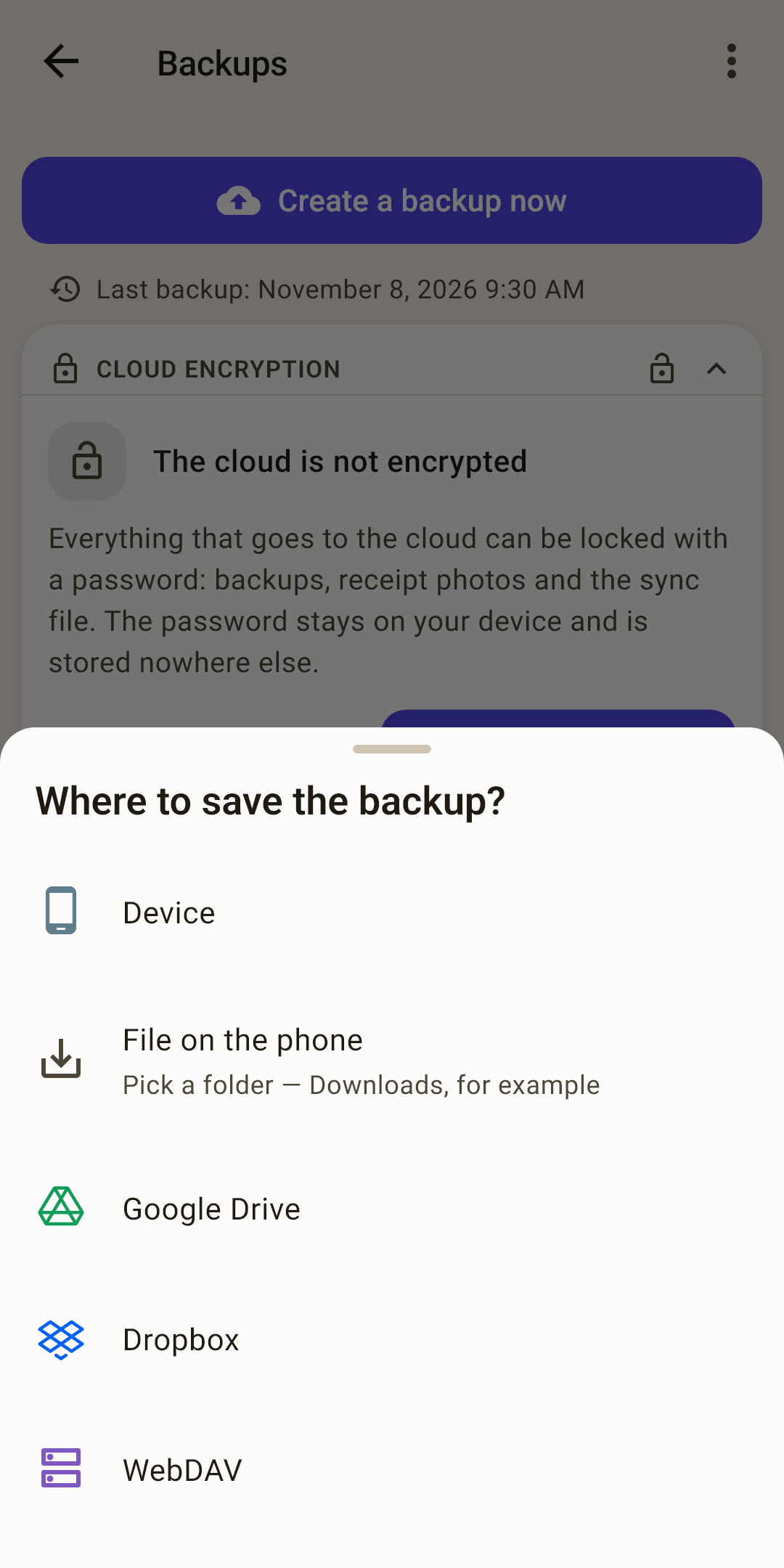
Device — to the app's backup folder. The backup appears in the list.
File on the phone — choose a folder — for example “Downloads” — and save the backup as a file. You can send it to yourself or put it on a computer. With a password set, the file is encrypted.
Google Drive, Dropbox, WebDAV — the backup goes straight to the cloud. Cloud not connected? The app tells you where to connect it.
The “⋮” menu
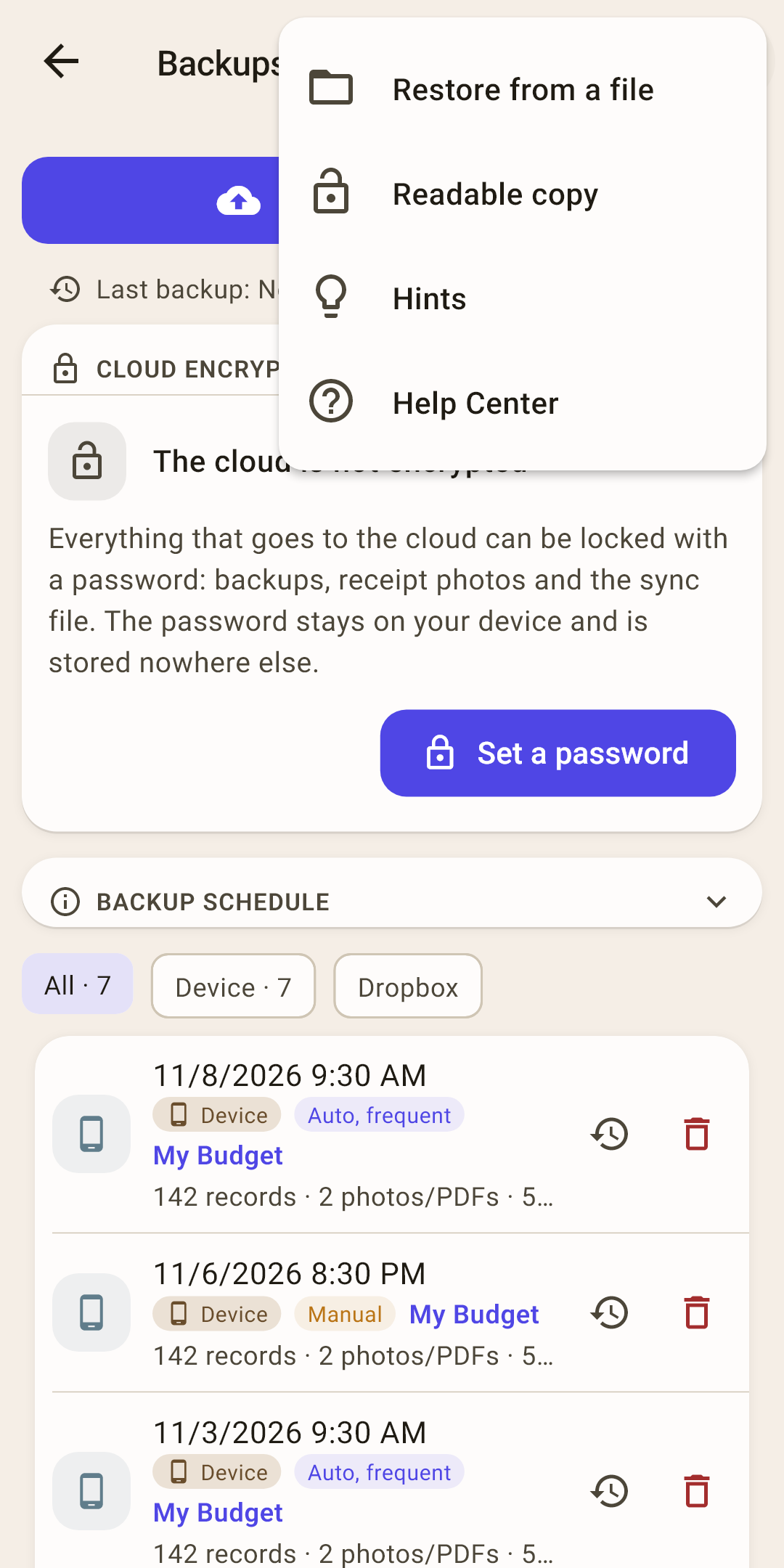
Restore from a file
return the budget from a backup file that isn't in the list: downloaded from the cloud, sent to yourself, saved to “Downloads”.
How it works
A backup (.y4zip), a “Readable copy”, and even the ynab_budget_sync.json sync file downloaded from the cloud in a browser all work. If the file is encrypted, the app asks for the password. If the backup is from a different budget (not a single shared account), the app asks again: “This looks like a different budget”. A YNAB 4 file doesn't go here — it's moved over by “Import from YNAB” in the settings.
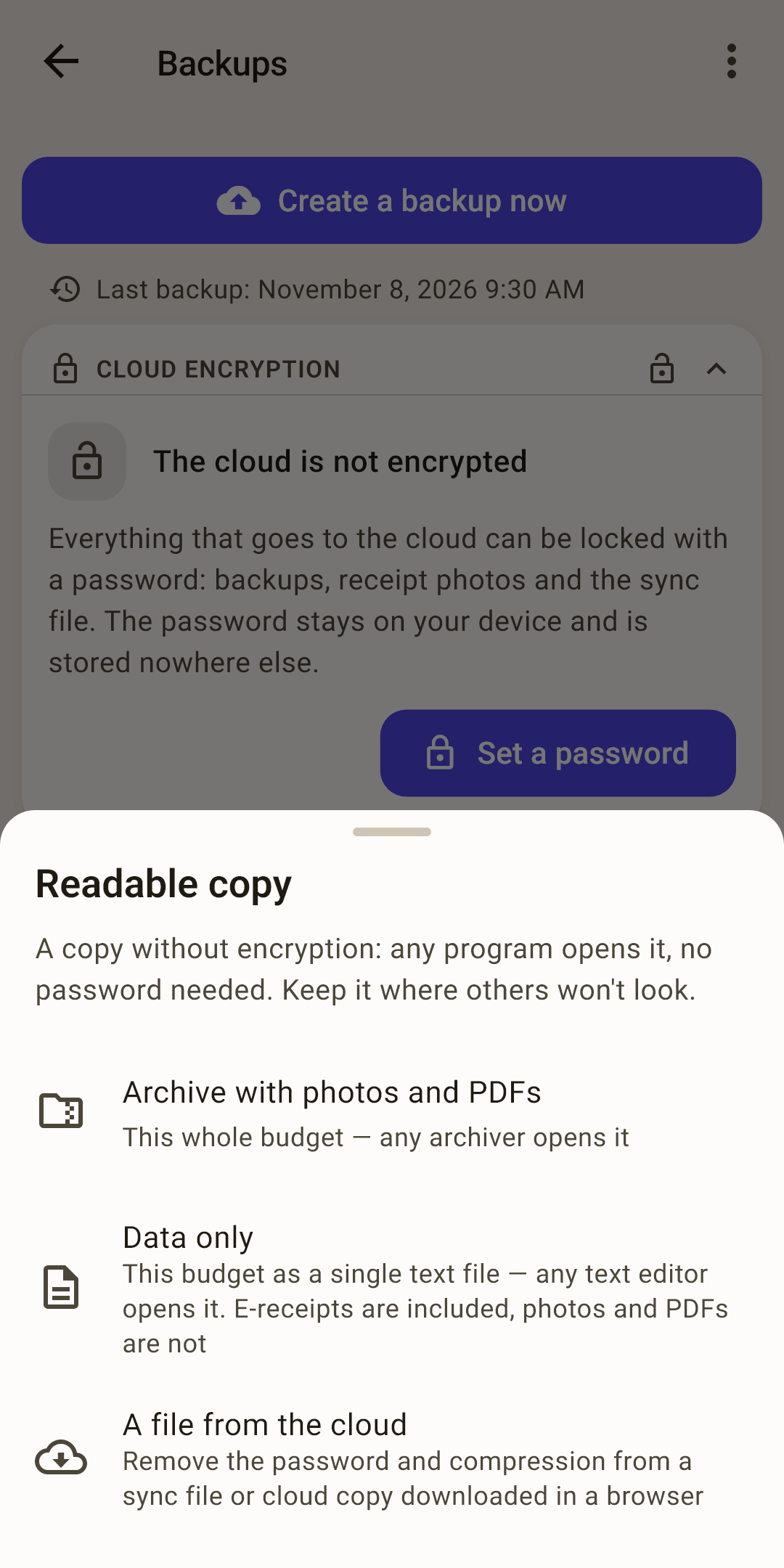
Readable copy
your data as a file any program can open, without a password. Keep it where strangers won't look.
How it works
Three options:
Archive with photos and PDFs — this budget in full; any archiver opens it.
Data only — this budget as one text file; any text editor opens it. E-receipts are there, photos and PDFs aren't.
A file from the cloud — remove the password and compression from a sync file or a cloud backup you downloaded from the cloud in a browser.
It's a road to your data that bypasses the app: even without the app, the budget stays yours.
Hints
this screen's hints as a list.
Help Center
This article on the website: it opens in your browser, in the app's language.
Load a budget from the cloud
A new phone, a reinstall, or a second device. The budget sits in the cloud under its name; this screen finds it and loads it here. The “I already have a budget” option in the first-launch wizard opens the same screen.
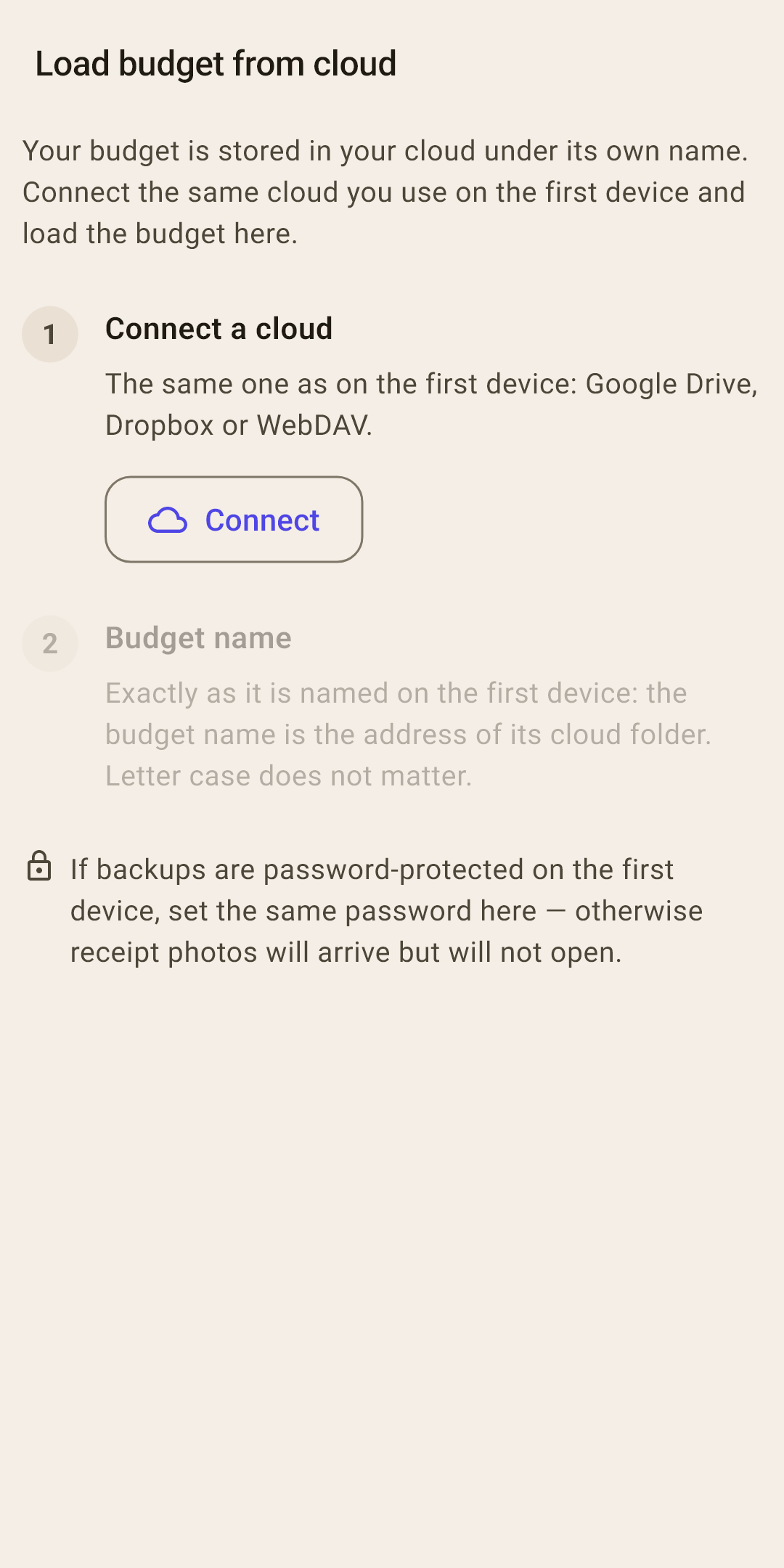
Connect a cloud — the same as on the first device: the same Google Drive, Dropbox or WebDAV and the same account.
Choose a budget — the app shows the budgets in the cloud with the date of their last sync. Tap yours and “Load budget”.
How it works
No list, or your budget isn't in it? Tap “Enter the name by hand” and type the name exactly as it's called on the first device: the budget name is the address of its folder in the cloud. Upper and lower case don't matter. The name is shown in the “Overview” header on the first device.
If this device already has data, the app asks again: “Replace the data with the cloud copy?”: everything that isn't in the cloud is lost.
Password — if a password is set on the first device, set the same one here. Without it, sync stops, and receipt photos arrive but won't open.
Local transfer: without a cloud
Move a budget between your own devices directly — as a file or over Wi-Fi. No internet and no accounts. It's a one-time transfer, not ongoing sync.
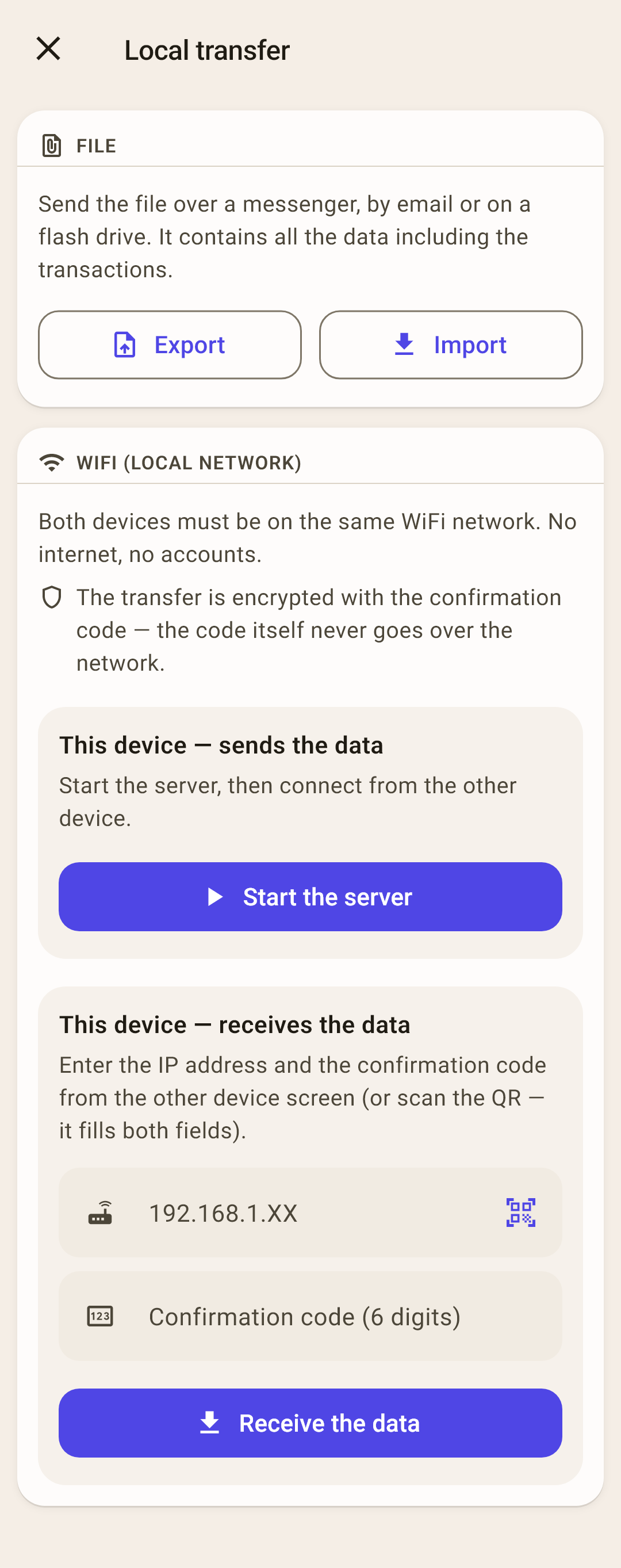
File — “Export” — the budget's data as a file: send it through a messenger, by email or on a flash drive. On the other device — “Import” and choose that file.
How it works
Import combines the data from the file with what's already there, and if the same record differs, it takes the file's version. Photos don't go into the file. To move everything including photos — Wi-Fi or a backup (“Archive with photos and PDFs”).
WiFi (local network) — both devices on the same Wi-Fi network. One sends the data, the other receives it and, with “Merge”, sends its own edits back. Photos move too.
How it works
On the sending device: “Start the server”. A QR code and a 6-digit “Confirmation code” appear.
On the receiving one: “Scan the QR” — the code fills in both fields. Or enter the IP address and the code by hand.
“Receive the data”. The app asks “How to apply the data?”: “Merge” — like a regular two-way sync: this device's edits also go to the sending one, nothing is lost; “Replace completely” — this budget becomes an exact copy of the sending one, and everything unsynced here is lost. “Replace” is for a new device.
On the sending device — “Stop the server”.
The transfer is encrypted with the confirmation code, and the code itself never goes over the network.