
Envelopes: the big idea
Imagine you took your paycheck out in cash and split it into envelopes: “Groceries”, “Utilities”, “Vacation”. When you buy groceries, you take money only from that envelope. An empty envelope means there's no more money for that. The app does exactly this, just without the paper.
Money in your accounts
Checking — $1,700
Cash — $200
“Unassigned”
$1,900 — no job yet
Category envelopes
Groceries — $550
Utilities — $170
…and so on, until it reaches 0
Spending
You bought bread — the “Groceries” envelope got thinner
Every dollar in your accounts sits in exactly one place: either in some envelope or in “unassigned”. So at any moment you can see what you can still afford and what you can't. The first goal is to bring “unassigned” down to zero: then every dollar has a job. That's not the finish line but the first step — where the method takes you next is at the end of the article.
How this differs from the usual “expense tracking” is below.
How this differs from expense tracking
Many people log their spending for years — in a notebook, a spreadsheet, their bank's app — and still can't see why the money runs out before the month does. Expense tracking honestly tells you about the past. Envelopes help you steer the future.
| Expense tracking | Envelope budgeting | |
|---|---|---|
| When you think about money | After spending: you look at where it went. | Before spending: you decide how much you can spend. |
| The main question | “Where did the money go?” | “What can I still afford?” |
| Overspending | You find out at the end of the month, when it's too late. | You see it right away: the envelope turns red the moment you buy — and you move money over from another one. |
| Money in the bank | One number: “there's $1,400 in checking, so I have money”. | Split up by job: part of it is already promised to rent, part to vacation. Only what's in the right envelope is free. |
| Your paycheck | Just income that will “somehow get spent”. | Money you give a job right away. |
| Irregular expenses | Insurance or a repair hits out of nowhere. | Set aside a little every month — when the bill comes, the money is already there. |
Example: “there's still plenty in checking”
It's the middle of the month and there's $1,400 in checking. You want headphones for $280.
How it works
Expense tracking sees $1,400 and says: “go ahead”. But rent is due in a week — $800, plus utilities and groceries until payday. The headphones are bought, and rent is short.
Envelopes see the same $1,400, but divided up: “Rent” — $800, “Utilities” — $170, “Groceries” — $260, “Fun & hobbies” — $170. There's $170 free for headphones. Want to buy them now? Decide which envelope the missing $110 comes from. You make the decision, and you make it before buying, not after.
So is there expense tracking here?
Yes — and in more detail than a notebook.
How it works
Every purchase is recorded, and “Where the money went”, “Month spending” and the reports show where it all went. It's just not the goal here but a check of the plan: did what you decided match what happened? Next month you'll budget more precisely.
In short
Expense tracking is the rearview mirror. Envelopes are the steering wheel.
How it works
Looking in the mirror is useful: you see where you came from. But only the wheel helps you move forward — a decision about where the money goes, made in advance.
Three numbers for every category
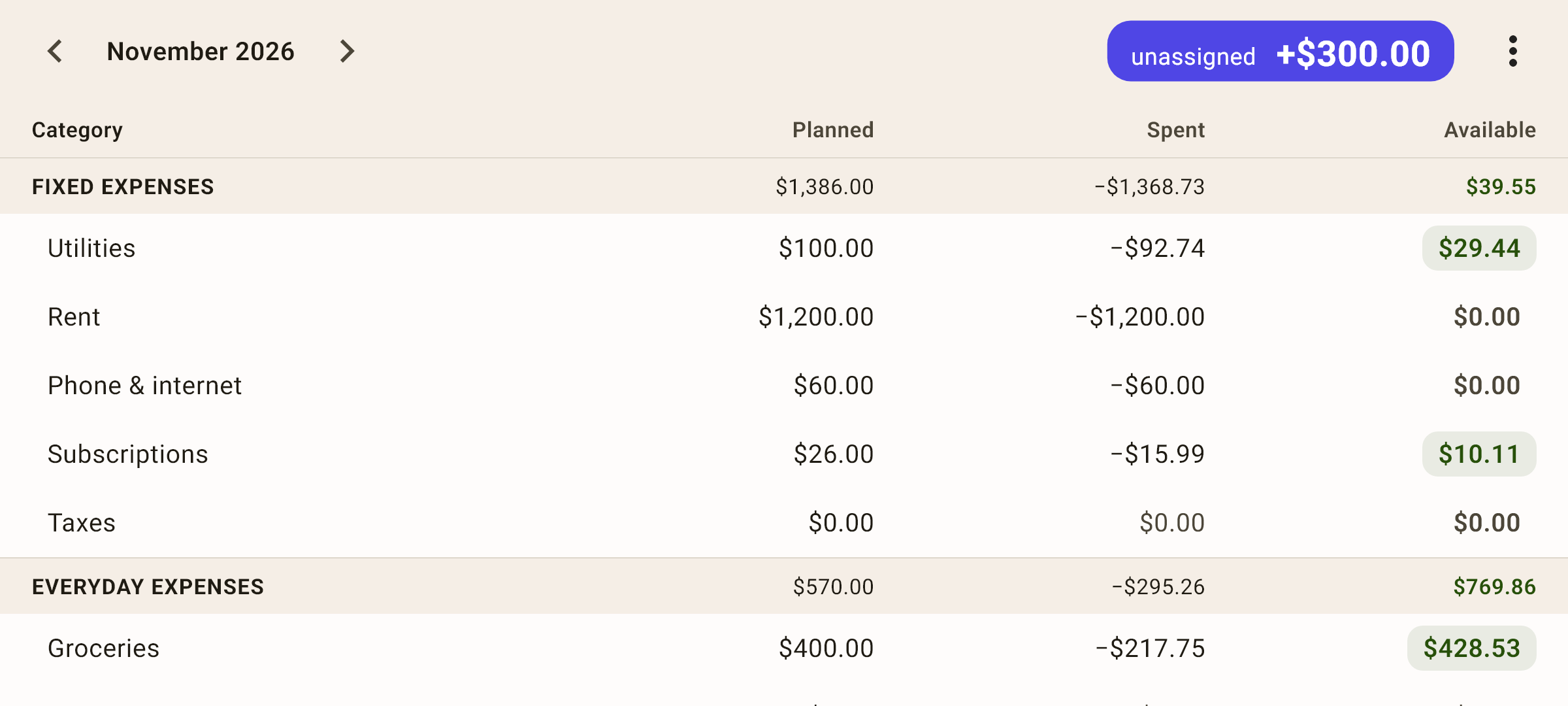
Turn your phone sideways — the “Budget” screen becomes a table, and the envelope's three numbers are labeled right in the column headers.
 Open the screenshot full size ↗
“Planned” — how much you put into the envelope this month. It's a decision: “$100 for utilities in November”.
“Spent” — how much has already left the envelope: all spending in this category this month, with a minus sign. A refund for a returned item reduces this number.
“Available” — how much you can still spend: carried over from last month + planned − spent.
How it works
In the screenshot, “Utilities” shows planned 100, spent 92.74 — so you'd think 7.26 is left. But 29.44 is available: $22.18 went unspent in October and carried over into November. That's how an envelope builds up.
A green chip means there's money in the envelope, a gray zero means it's empty, and red means a minus: you spent more than there was.
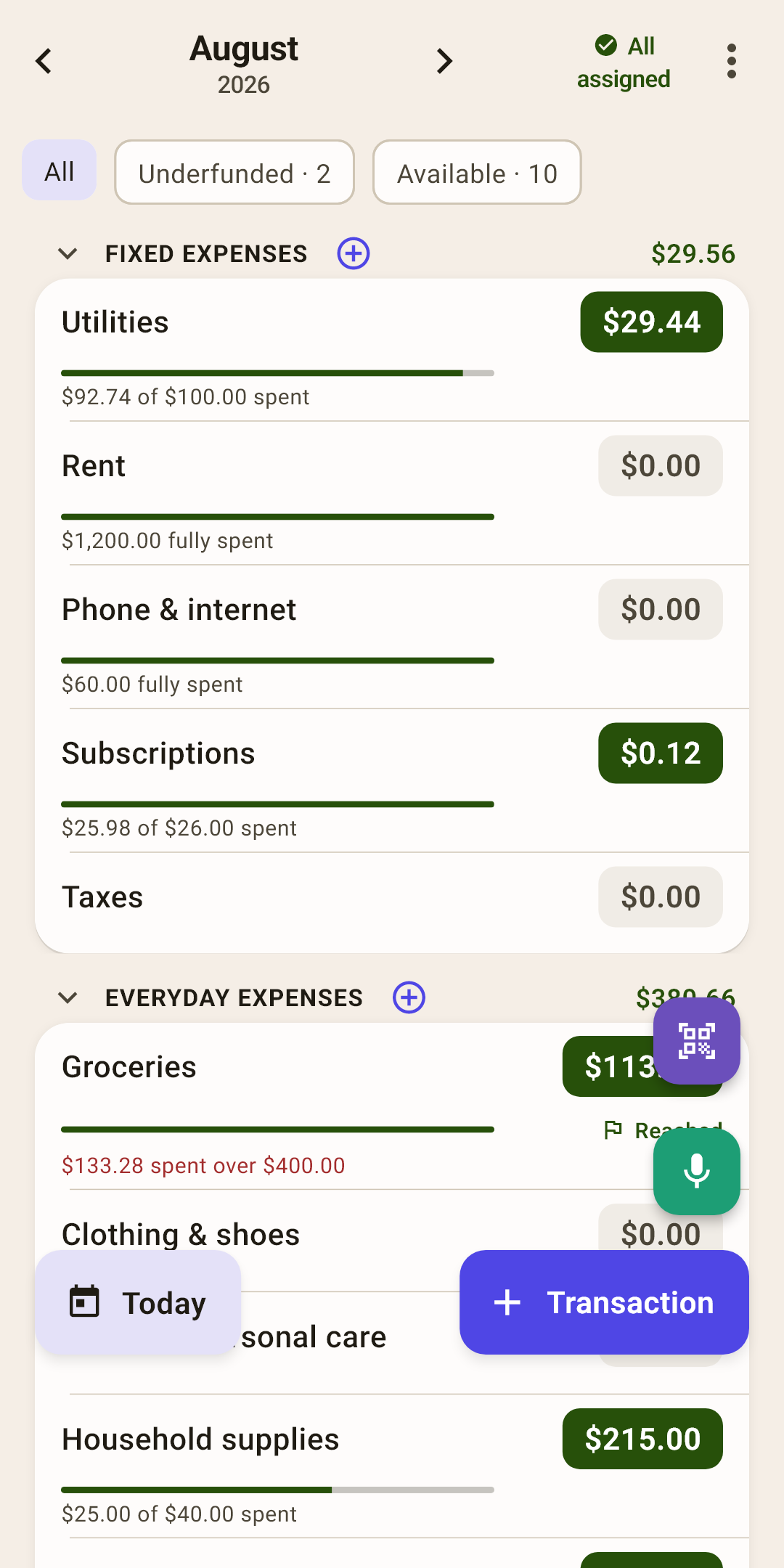
What it looks like on screen and what to tap is in the article “Budget”. Here are just the rules the numbers follow.
Income goes to “unassigned”, not to a category
Your paycheck doesn't land in an envelope by itself: it goes to “unassigned”, and you divide it up.
How it works
In the transaction form, income is recorded to “Income for November” by default — that is, to this month's “unassigned”. You can also choose “Income for December” — see the section “Age of money in detail” of the “Overview” article.
A refund goes back to the envelope
Got money back for a returned item? It goes to the category it left from, not to income.
How it works
How to record it — the article “Transaction form”, section “Refund for a returned item”.
A transfer isn't spending
You withdrew cash, paid off a credit card, moved money to savings — the money is still yours.
How it works
A transfer between budget accounts doesn't touch any envelope. Only a transfer to an account outside the budget (savings, a deposit) leaves the envelopes — then the app asks for a category.
Month after month
The budget lives in months. What happens to an envelope when the month turns over is one of the key rules.
A plus carries over
Didn't spend it all? The rest moves into the next month and stays in the envelope.
How it works
That's how you save for big and irregular things: put $150 into “Vacation” every month, don't spend it — and by summer there's $900. You can also set money aside for the future right away: you can assign money to any month ahead — the “›” arrow on the “Budget” screen.
A minus resets to zero
Spent more than the envelope had? The category turns red. When the month turns over, the minus is wiped — but not without a trace.
How it works
A minus from your own money (red, wallet icon) reduces next month's “unassigned”: the money is already spent, after all. So it's better to cover a minus right away by moving money from another category: tap the red amount on the “Budget” screen.
A minus on a credit card (yellow, card icon) is a different story: it doesn't eat your money, it grows the card debt. “Unassigned” doesn't take it, but the debt will still have to be paid.
“Month budget” on “Overview”
The whole month's bookkeeping as one ladder: carried over from last month, income, assigned, and the “unassigned” total.
How it works
If the number on the chip looks odd, look here: you'll see where it came from. More in the article “Overview”.
A credit card in the budget
The credit card is the least familiar part of the envelope method. There's one rule: a purchase on a credit card spends envelope money just like a purchase on a debit card.
The purchase
You bought groceries on a credit card for $35 — the “Groceries” envelope got $35 thinner, as usual.
Money for the payment sets itself aside
The app moves these $35 into the “Card payments” group, into your credit card's category.
How it works
So by the payment date the money for paying it off is already set apart, and you can't spend it by accident. You don't need to put anything aside yourself.
Paying the card
Pay off the credit card with a transfer from your regular account to the credit card. The money set aside goes to the payment.
How it works
How to record a transfer — the article “Transaction form”.
The method's four rules
The app doesn't force you to follow them — it suggests them one at a time, when a rule becomes relevant.
Give every dollar a job
Keep assigning money until “unassigned” is zero. Money without a job slips away unnoticed.
Embrace your true expenses
Insurance once a year, a car repair, holiday gifts — these are expenses too. Set aside a little for them every month.
How it works
“By date” goals help: the app works out how much to put in each month to make it in time.
Roll with the punches
Overspending isn't failure. Move money from another envelope and carry on.
How it works
A budget is a plan, not a vow. What matters is that the envelopes honestly show how much is left.
Age your money
The goal is to spend money you earned a month ago, not yesterday.
How it works
“Age of money” on “Overview” keeps track of this. Once it reaches 30 days, you can live on last month's money: details in the article “Overview”.
Zero is only the first step
“Unassigned” at zero is a good goal, but not the final one. The method goes further: from “I make it to payday” to “my money works for me”. The steps come in order — skipping them is risky: investing without a cushion means selling your investments the first time the car breaks down.
Every dollar has a job
All the money in your accounts is split into envelopes. You know what you can afford until the end of the month.
How to tell you're here: “unassigned” is zero, and no categories are red.
How the app helps: the “Unassigned” chip, auto-assign, “Cover all overspending”.
Envelopes for irregular expenses
Insurance, car repairs, gifts and vacations no longer catch you off guard: a little goes toward them every month.
How to tell you're here: a big bill arrives, and the money for it is already waiting in its envelope.
How the app helps: the goals “By date” and “Monthly” work out how much to put in; the “What’s ahead” block on “Overview” reminds you where money is short.
A month ahead
You spend money you earned a month ago. This month doesn't need the new paycheck — it goes to the next one.
How to tell you're here: “Age of money” is 30 days or more.
How the app helps: “Age of money” on “Overview”, income “for next month” in the form — details in the article “Overview”, section “Age of money in detail”.
An emergency fund
A reserve of three to six months of normal spending. Losing a job or getting sick becomes a setback, not a disaster.
How to tell you're here: “Rainy day fund” holds several months' worth of expenses.
How the app helps: a “Balance” goal on the “Rainy day fund” category; average monthly spending — in the reports and on the category screen.
Your money works for you
The cushion is built, irregular expenses are covered, you're a month ahead — and now the extra can do more than sit: a deposit, bonds, investments. Money starts making money.
How to tell you're here: every month part of your income goes to “Investments”, and you don't touch it for everyday spending.
How the app helps: the “Savings” group with an “Investments” category; “Pay yourself” on “Overview” shows what percent of your income you set aside (the norm is 10% or more); a “Tracking” account for a deposit or brokerage account; “Net worth” on “Overview” — how everything you own grows.
How long the road takes depends on your income and habits. The first step is usually the first month. A month ahead takes anywhere from three months to a year. What matters is taking a step every month, not a leap.
Ready to start? Next — “First steps”: from the first launch to your first month.